
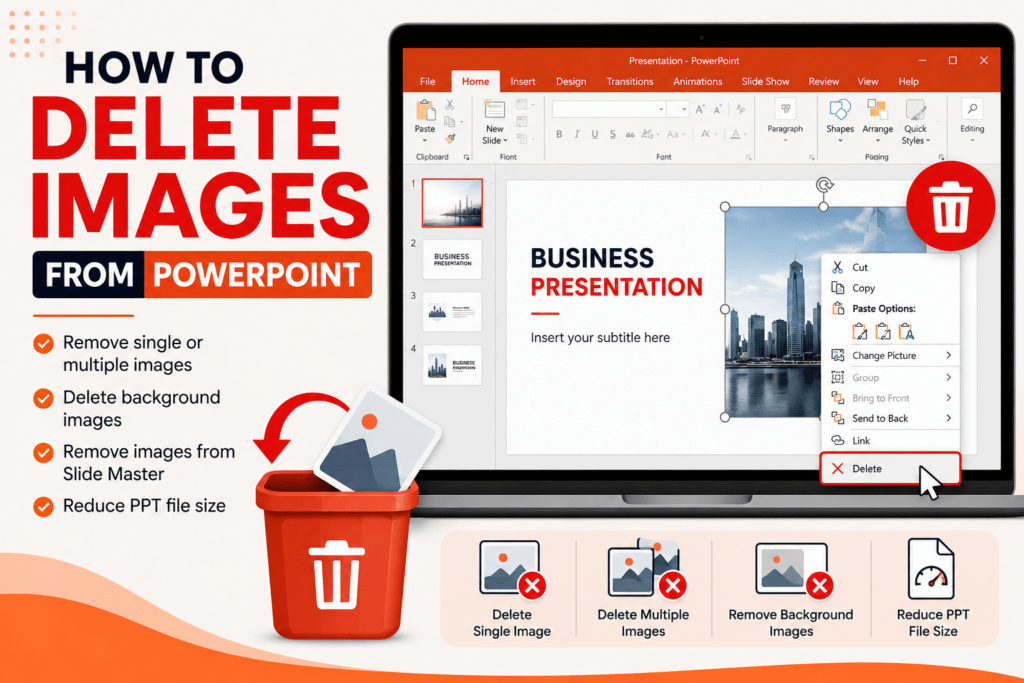

Images can make presentations visually appealing, but sometimes you may need to remove unnecessary pictures to reduce file size, improve slide design, or update outdated visuals. Thankfully, deleting images in Microsoft PowerPoint is simple and only takes a few clicks.
In this guide, I’ll explain different methods to delete images from PowerPoint presentations, including removing single images, multiple pictures, background images, and hidden visuals.
Why Delete Images from PowerPoint?
Removing images from PowerPoint helps you:
- Reduce PPT file size
- Improve presentation clarity
- Replace outdated visuals
- Simplify slide design
- Fix formatting issues
- Remove unwanted screenshots or logos
This is especially useful when editing old presentations or preparing professional slides.
Method 1: Delete a Single Image from PowerPoint
This is the easiest method.
Step 1: Open the Presentation
Launch Microsoft PowerPoint and open your PPT file.
Step 2: Select the Image
Click on the image you want to remove.
Once selected, resize handles will appear around the picture.
Step 3: Press Delete Key
Now simply press:
Deleteor
BackspaceThe image will instantly be removed from the slide.
Method 2: Remove Multiple Images at Once
If your slide contains several images:
Steps:
- Hold the
Ctrlkey - Click multiple images
- Press
Delete
This removes all selected pictures simultaneously.
Method 3: Delete Background Images from Slides
Sometimes images are added as slide backgrounds instead of regular pictures.
Step 1: Right-Click the Slide
In the slide thumbnail pane:
- Right-click the slide
- Select Format Background
Step 2: Remove the Background Image
Under background settings:
- Choose Solid Fill
- Or click Reset Background
The image background will be removed.
Method 4: Remove Images from Slide Master
Certain images may appear on every slide because they are inserted in Slide Master.
Steps:
- Click View
- Select Slide Master
- Locate the image
- Select and delete it
- Close Slide Master
This removes recurring images across slides.
Method 5: Delete Hidden Images Behind Objects
Sometimes images may be hidden behind text boxes or shapes.
Use Selection Pane
- Click Home
- Select Arrange
- Choose Selection Pane
The pane shows all objects on the slide.
Now:
- Select hidden images
- Press Delete
This helps remove invisible or overlapping pictures.
How to Reduce PPT File Size After Deleting Images
Deleting images may not immediately reduce file size significantly because PowerPoint can retain compressed image data.
Compress Pictures
- Click any image
- Select Picture Format
- Click Compress Pictures
Then:
- Remove cropped areas
- Lower resolution if needed
Save the presentation afterward.
Common Problems While Deleting Images from PowerPoint
Unable to Select Image
Possible reasons:
- Image is locked
- Hidden behind another object
- Added in Slide Master
Fix:
Use the Selection Pane or Slide Master view.
Deleted Image Still Appears
This usually happens when:
- Image exists on multiple slides
- Cached preview remains
Fix:
- Save and reopen presentation
- Check Slide Master
- Remove duplicate images
Accidentally Deleted Wrong Image
Fix:
Use shortcut:
Ctrl + Zto undo the action instantly.
Tips for Better PowerPoint Slide Design
After removing unnecessary images:
- Use clean layouts
- Keep white space balanced
- Add only relevant visuals
- Avoid cluttered slides
- Maintain consistent design themes
Minimal presentations often look more professional and easier to understand.
Create Professional Presentations Faster with AI
If you frequently create or edit presentations, tools like MagicSlides AI PPT Creator can help simplify the process.
Instead of manually designing slides and managing visuals, MagicSlides can generate professional PowerPoint presentations automatically from:
- Text prompts
- Documents
- PDFs
- URLs
- YouTube videos
You can create cleaner, more organized presentations quickly and later edit or remove images easily in Microsoft PowerPoint if needed.
Final Thoughts
Deleting images from PowerPoint is simple once you know where the visuals are stored. Whether you want to remove a single picture, clear slide backgrounds, or delete hidden images, Microsoft PowerPoint provides multiple ways to manage presentation visuals efficiently.
Keeping slides clean and visually balanced can significantly improve the overall presentation experience for your audience.