

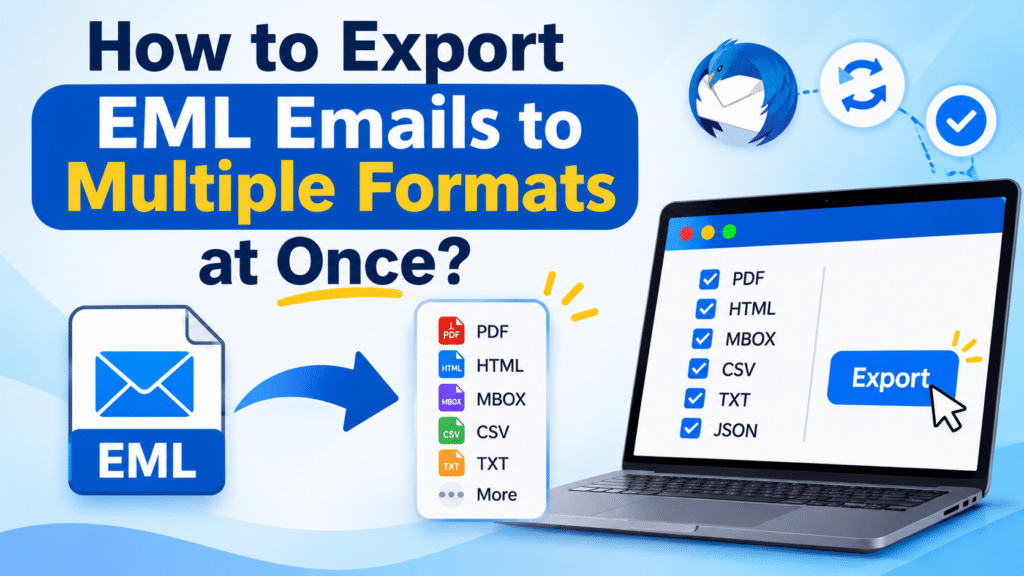

You can export EML emails into different formats using Thunderbird and its ImportExportTools NG add-on. However, you need to repeat the export process for each format. A dedicated converter provides an alternative by allowing you to select multiple output formats and process them in the same conversion run.
Introduction
EML files store individual email messages with their headers, body content, and attachments. Depending on your requirements, you may need the same emails in different formats. For example, PDF can be useful for documentation, MBOX for mailbox migration, and CSV for organizing email records.
Exporting the same collection repeatedly can take extra time. Instead, you can use a workflow that creates different output versions from the same source EML files.
This article explains how to export emails manually through Thunderbird and how to generate multiple output formats in one process.
Also Read: How to Import EML Files into Thunderbird
Why Export EML Emails into Multiple Formats?
Different formats serve different purposes. Creating separate versions of your email archive can help with:
-
Email migration: Use formats such as MBOX or MSG with compatible email applications.
-
Documentation: Save important correspondence as PDF or HTML.
-
Data analysis: Use CSV or JSON when you need structured email information.
-
Offline access: Keep readable copies of messages without depending on the original email client.
-
Flexible archiving: Maintain different versions of the same email collection for separate requirements.
Before exporting, decide which formats you actually need. Creating unnecessary copies can increase storage usage.
Method 1: Export EML Emails into Different Formats Using Thunderbird
Thunderbird supports importing EML messages into Local Folders. You can then use the ImportExportTools NG add-on to export the messages into supported formats.
This method is suitable when you want a free manual approach and do not mind repeating the export steps.
Steps to Export EML Files in Different Formats
Step 1: Download and install Mozilla Thunderbird on your computer.
Step 2: Open Thunderbird and create a folder under Local Folders to store your EML messages.
Step 3: Open File Explorer or Finder and navigate to the folder containing your EML files.
Step 4: Select the required files and drag them into the Thunderbird folder.
Step 5: Open the folder and verify that the messages and attachments appear correctly.
Step 6: Install the ImportExportTools NG add-on from the official Thunderbird Add-ons website. Confirm compatibility with your Thunderbird version.
Step 7: Right-click the folder containing your emails and open the ImportExportTools NG menu.
Step 8: Choose the appropriate export option. For example, select the HTML, PDF, CSV, or plain-text export option for the messages in that folder. Choose the attachment-inclusive option where available if you need the associated files.
Step 9: Select a destination folder and complete the export.
Step 10: Repeat the process for every additional format you require. For MBOX output, use the add-on’s folder-export option.
Step 11: Open the output folders and verify the resulting files.
Limitations of the Thunderbird Method
Although this approach is free, it involves repeated steps.
-
Separate export operations: You must repeat the process for each output format.
-
Add-on dependency: You need a compatible extension to access additional export options.
-
Manual handling: Importing and organizing the source messages requires your attention.
-
Verification effort: You must check each output separately.
-
Time-consuming: Creating several versions of a large email archive can take considerable time.
If you only need one or two formats, this approach may be sufficient. When you need several output versions from the same EML collection, a single export workflow can be more convenient.
Method 2: Export EML Emails into Multiple Formats Using a Dedicated Converter
The SysTools EML Converter provides an option to select multiple output formats and process them in the same conversion run.
It supports email formats such as MSG, PST, MBOX, and EMLX, along with document formats including PDF, HTML, MHT, TXT, CSV, JSON, and ZIP.
You can also preview the selected messages, choose individual files, and apply available date filters before exporting.
Steps to Export EML Files into Multiple Formats
Step 1: Download and install the software for Windows or Mac. Launch the application.
Step 2: Add the EML files or select the folder containing your saved messages.
Step 3: Preview the loaded emails and verify that the required messages are included.
Step 4: Open the export options and select the output formats you need. For example, you can choose PDF for documentation and MBOX for mailbox migration.
Step 5: Review the advanced settings associated with the selected formats.
Step 6: Apply the available date filter or select specific messages if you do not need the entire collection.
Step 7: Choose the destination location for the exported data.
Step 8: Review your selections and start the export process.
Step 9: Wait until the operation finishes. Open the destination location and check the generated output files.
Step 10: Verify a sample of each format to ensure that the expected email information and attachments are available.
Why Use Multiple Output Formats in One Process?
This workflow is useful when you need different versions of the same email collection.
-
Multiple format selection: Choose the required output types in the same run.
-
Email preview: Review messages before starting the export.
-
Selective conversion: Export only the files you need.
-
Date filtering: Narrow the selection to a specific email period.
-
Attachment support: Retain associated email attachments in supported output formats.
-
Header retention: Preserve email header information during conversion.
The main advantage is that you do not need to repeat the entire loading and selection process for every output format.
Thunderbird vs. Dedicated Conversion Method
| Requirement | Thunderbird | Dedicated converter |
|---|---|---|
| Export multiple formats | Separate export runs | Same conversion run |
| Preview emails | Yes | Yes |
| Select individual messages | Yes | Yes |
| Date filtering | Depends on available workflow | Available |
| Attachment handling | Export settings | Supported output settings |
| Outlook installation required | No | No |
Conclusion
Exporting the same EML emails into different formats is useful when you need separate copies for migration, documentation, analysis, and archiving. Thunderbird provides a manual option through an add-on, but you must repeat the export process for each format.
A dedicated conversion workflow offers multiple output selections in the same run, along with preview and filtering options. Choose only the formats you need and verify the resulting files before moving or deleting your original EML archive.
Frequently Asked Questions
1. Can I export the same EML emails into PDF and MBOX?
Yes. You can create separate PDF and MBOX versions from the same source messages using compatible export methods.
2. Does Thunderbird support multiple output formats?
Yes. With ImportExportTools NG, Thunderbird can export messages into formats such as HTML, PDF, CSV, plain text, and MBOX. Each format requires its own export operation.
3. Can I select only specific EML files for export?
Yes. You can select individual messages in Thunderbird or use the preview and selection options in a dedicated conversion interface.
4. Will the original EML files be deleted during export?
No. Exporting messages creates additional output files. Keep your original EML archive as a backup until you have verified the resulting files.
5. Can I export EML files into different formats on Mac?
Yes. The dedicated conversion application supports Windows and Mac, allowing users to select supported output formats on either operating system.