
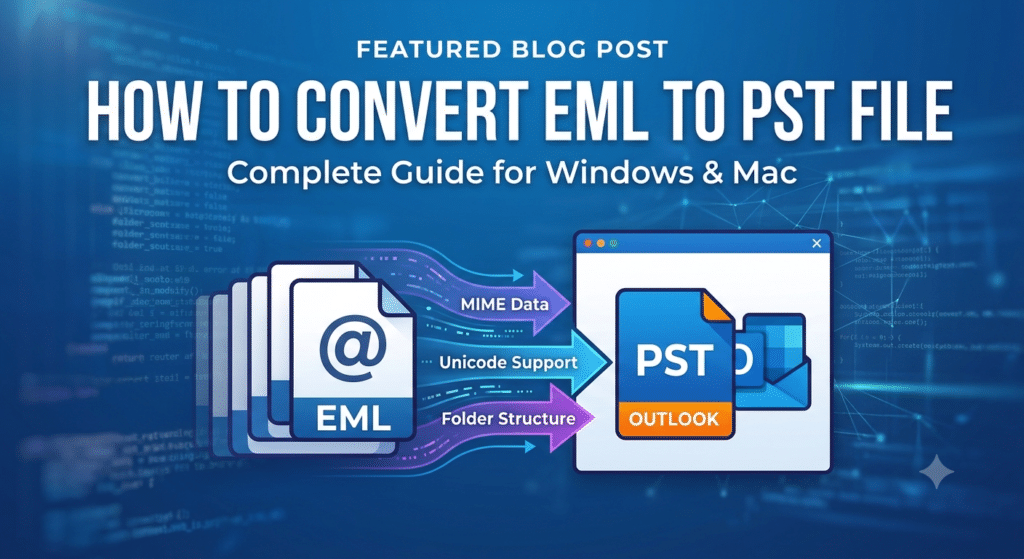

To convert EML files into Outlook PST format, choose one of two primary pathways depending on your file volume:
- Manual Drag-and-Drop: Open Microsoft Outlook, create a new subfolder, drag .eml files directly from File Explorer into Outlook, then export that folder via File > Open & Export > Import/Export as an Outlook Data File (.pst).
- Automated Conversion: Use SysTools EML Converter Software. Download and launch the software, browse and preview your EML/EMLX folders, choose PST as the export format, and click Export. This preserves full MIME headers (To, CC, BCC, Date, Sent-by), inline attachments, Unicode characters, and nested folder structures without requiring Outlook pre-installed.
Technical Comparison: EML vs. PST Storage Formats
Understanding the underlying structural differences explains why manual conversion methods often alter file properties:
- Structure: EML files store a single plain-text MIME message per file, whereas PST files use a complex proprietary database container holding entire folder structures.
- Email Client Compatibility: EML is native to Thunderbird, Apple Mail, Windows Live Mail, and eM Client; PST is native to Microsoft Outlook (2003 through 2024 / Office 365).
- Data Holding: 1 EML file equals 1 individual email message with attachments, while 1 PST file consolidates thousands of folders, emails, contacts, and calendar events.
- File Size Limits: EML files are bound only by the host OS file system limits, while PST files have fixed thresholds legacy ANSI PST files cap out at 2 GB, whereas modern UNICODE PST files support up to 50 GB.
- Metadata Integrity: EML files rely on plain RFC-822 headers that are easily altered, while PST files utilize MAPI properties governed by strict checksum controls.
Method 1: Manual Drag-and-Drop via Microsoft Outlook
If you have Microsoft Outlook installed and only need to transfer a few files, you can convert EML to PST manually.
Step-by-Step Instructions:
- Launch Microsoft Outlook on your Windows system.
- Right-click on your Inbox or Folders pane and select New Folder. Name it EML Imports.
- Open Windows File Explorer and select the .eml files you wish to convert.
- Drag and drop the selected .eml files directly into the newly created Outlook folder.
- Go to File > Open & Export > Import/Export.
- Choose Export to a file, then select Outlook Data File (.pst).
- Select the EML Imports folder, pick a destination path, and click Finish.
Critical Limitations of Manual Methods:
- Loss of SMTP Headers: Transport headers, DKIM signatures, and original IP traces are frequently stripped during manual drags.
- Folder Structure Collapse: Subfolders cannot be dragged concurrently; nesting hierarchies must be reconstructed manually when you attempt to convert EML to PST.
- Date Timestamp Overwrites: The “Received Date” often shifts to the exact system time when the file was dropped into Outlook.
- Attachment Corruption: Inline images and non-standard attachments (e.g., .dat, .zip) can become unlinked or unreadable.
Method 2: Professional Solution
For bulk migrations, complex nested folder trees, or compliance archiving, manual steps are impractical. Using a dedicated utility like the SysTools EML to PST Converter Software provides an automated, precise workflow to convert EML to PST.
Step-by-Step Guide to Batch Convert EML Files to PST:
- Download and Install: Launch the utility on Windows (11/10/8/7) or macOS to convert EML to PST seamlessly.
- Scan & Browse: Click Add File / Add Folder to automatically load single EML files or bulk directory hierarchies.
- Preview Email Data: Inspect emails across 8 specialized viewing modes, including Normal, Hex, MIME, Message Header, HTML, and Attachments.
- Select Export Format: Mark the radio button for PST (or choose MSG, MBOX, PDF, or HTML if needed) to convert EML to PST.
- Apply Advanced Settings:
- Maintain Folder Hierarchy: Ensures on-disk directory structure remains identical inside Outlook.
- Date Filter: Specify “From” and “To” dates to export targeted date ranges.
- Split Resultant PST: Enable PST splitting by size (e.g., 2 GB, 5 GB, 10 GB) to avoid Outlook database corruption.
- Execute Export: Specify your output storage path and click Export to start the process to convert EML to PST.
Technical Elements
1. Non-ANSI Character Sets & Foreign Encoding
Standard EML conversion scripts break when encountering UTF-8, double-byte characters (Chinese/Japanese/Korean), or non-Latin MIME encodings in headers. Automated enterprise engines translate raw MIME header charsets into Microsoft MAPI UNICODE attributes, preventing character corruption when you aim to convert EML to PST.
2. Embedded Inline CID Images vs. Regular Attachments
Manual copy operations treat embedded images (cid:image001.png@…) as standard attachments rather than inline assets, cluttering messages and breaking HTML formatting. Dedicated software maps Content-ID references correctly within Outlook’s Rich Text / HTML rendering engine as you work to convert EML to PST.
3. PST Storage Oversizing & Outlook Corruption
Legacy Outlook versions (and corrupted PST profiles) crash when single files exceed 20 GB to 50 GB. Splitting the output PST dynamically during conversion avoids stability issues in enterprise Outlook environments when looking to convert EML to PST.
Frequently Asked Questions (FAQs)
Q1: Can I convert EML files to PST without having Microsoft Outlook installed?
Answer. Yes, Manual drag-and-drop requires Outlook, but standalone conversion utilities process raw EML/EMLX files directly into Unicode PST structures without requiring Outlook pre-installed.
Q2: Will my email attachments stay attached during conversion?
Answer. Manual drag-and-drop can unlink certain attachment types. Automated conversion preserves all original attachments (PDFs, DOCX, ZIPs, images) embedded within the generated PST when you choose to convert EML to PST.
Q3: How do I convert EML to PST on macOS?
Answer. Apple Mail exports messages in .eml or .emlx format. You can use Mac-compatible conversion tools to convert EML to PST directly into Windows-compatible Outlook PST files.
Q4: Is there a file size limit when converting bulk EML folders?
Answer. The PST file format supports up to 50 GB per database in modern Outlook versions. When converting high-volume archives, splitting output files into smaller chunks (e.g., 5 GB to 10 GB) ensures optimal database performance.