
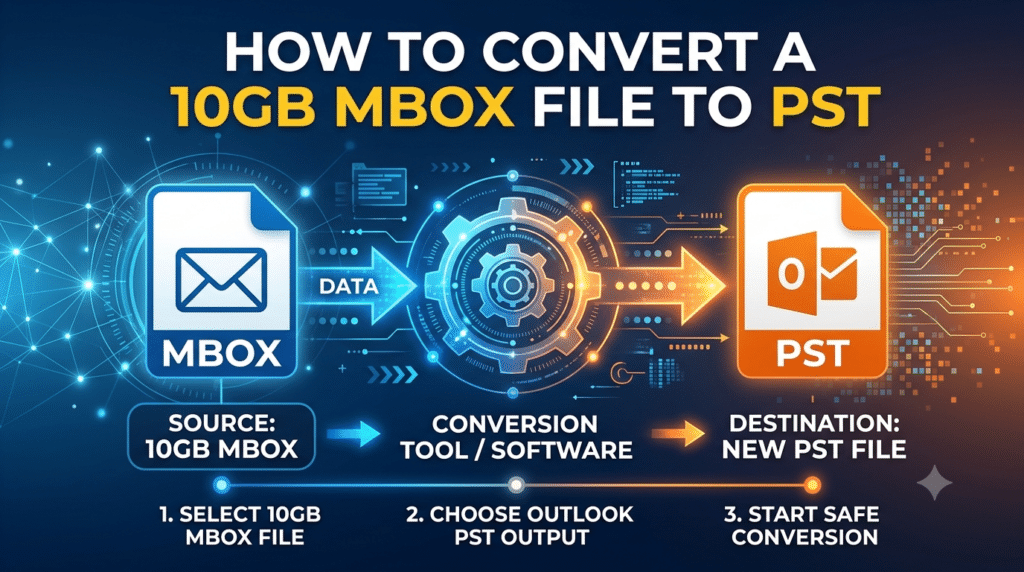

MBOX to PST conversion fails mainly because Outlook cannot open MBOX natively, the MBOX file is corrupt or has broken message separators, the PST hits a size or format limit, or the converter cannot handle large or multi-folder files. The fix is to repair or re-export the MBOX, then use a dedicated offline converter that previews the data first and exports a Unicode PST, such as the MailPro+ MBOX to PST Converter.
What is MBOX and PST File?
MBOX is a plain-text format. Every message sits in one file, one after another, and each message starts with a line that begins with “From “. Thunderbird, Apple Mail, SeaMonkey, Eudora and web-mail export archives all use it.
PST is a structured, proprietary database that Outlook uses, with folders, MAPI properties and its own indexing.
Converting between them is a translation job, not a rename. That is why simply changing the extension never works.
Most common error: renaming .mbox to .pst. Outlook then reports that the file is not a personal folders file.
Reasons MBOX to PST Conversion Fails
1. Outlook has no built-in MBOX import
The Outlook import wizard handles PST and CSV, not MBOX. People hunt for a hidden option that does not exist.
Most common error: “The file cannot be imported” or no MBOX option in the wizard.
Fix: Use a converter built for MBOX, or the manual EML route described below.
2. Corrupt or truncated MBOX file
Interrupted downloads, a crashed mail client, or a disk error can cut a message in half. The converter then stops at the damaged message or skips everything after it.
Most common error: the conversion stops at a fixed percentage every time, or you get far fewer emails than expected.
Fix: Re-export from the source client, or open the MBOX in a viewer first to find where it breaks. Running the same file twice and failing at the same spot points to corruption, not the tool.
3. Wrong file selected
Thunderbird stores mail in extensionless files such as “Inbox” or “Sent”, next to .msf index files. Apple Mail exports a folder named .mbox that contains the real file inside. Pick the .msf file and you get an empty result.
Most common error: a successful run that produces a 0 KB or empty PST.
Fix: Select the actual mail file, not the index, or point a recursive tool at the whole profile folder.
4. Size limits and ANSI versus Unicode PST
Older ANSI PST files top out at about 2 GB. Large single-file archives from web-mail exports often run into the multi-gigabyte range and fail partway.
Most common error: the PST stops growing at 2 GB or Outlook flags it as full.
Fix: Always export to Unicode PST. Split very large archives by date or folder so each PST stays manageable.
5. Encoding and attachment damage
Messages in non-UTF-8 character sets can turn into garbled text. Truncated base64 blocks leave attachments that will not open.
Most common error: unreadable subject lines or attachments that show as 0 bytes.
Fix: Use a converter that reads MIME properly, and check a sample in preview before exporting everything.
6. Missing or bad date headers
When a message has no valid Date header, many tools stamp it with 1970 or today’s date, which scrambles sorting.
Most common error: old emails showing as “1/1/1970”.
Fix: Preview the headers before conversion and confirm dates are intact.
7. Outlook, antivirus or permissions interfering
An open Outlook profile, an antivirus scanner locking the output, a protected folder, or a full drive can all stop a PST from being written.
Most common error: “Access denied” or “Unable to create the output file.”
Fix: Close Outlook, save to a local folder with plenty of free space, and run the tool as administrator.
8. Weak free converters
Free utilities often cap items, ignore subfolders, drop attachments, or crash on large files.
Most common error: nested folders flattened into one, or conversion limited to a few dozen emails.
Fix: Test with a demo on your real data before trusting any tool.
Manual Methods: Do They Work?
The usual manual route is to add your Thunderbird account to Outlook over IMAP and drag folders across, or to save messages as EML and drag them into Outlook one folder at a time. This is the manual side of Why MBOX to PST Conversion Fails and How to Resolve It that most guides oversell.
Advantages
- No extra software cost.
- Fine for a few hundred emails.
Limitations
- Slow and error-prone on large mailboxes.
- Folder hierarchy often breaks.
- Drag-and-drop stalls on big attachments.
- Needs a live mail account and both clients installed.
- No preview, search or duplicate control.
Most common error: a drag-and-drop that hangs midway or leaves half the folder behind, with no log to tell you what was missed.
Fixing It with a Dedicated Tool: MBOX to PST Converter
- Converts multiple MBOX files, or a whole folder, in one batch with attachments.
- Previews emails in 8 modes, including Normal, Message Header, Hex and MIME, so you can spot corruption before exporting.
- Searches with 10+ filters (To, From, Subject, Sent Date, Importance and more) so you can export only what you need.
- Excludes duplicate emails as an option.
- Can maintain the folder hierarchy and offers naming options such as Subject or Subject + Date.
- Creates a Unicode PST by default, which removes the 2 GB ANSI problem.
- Works offline in read-only mode, so nothing is uploaded and the source file is untouched.
- Reads MBOX from Thunderbird, Apple Mail, SeaMonkey, Eudora and web-mail export archives.
Step-by-Step: Convert MBOX to PST
- Install and launch the software. On Windows, run it as administrator and make sure .NET Framework 4.5 or later is installed.
- Create a collection. This acts as your case container and keeps a record of the work.
- Add MBOX files. Add individual files or an entire folder. Use the automatic search if you do not know where the files are.
- Preview the data. Check messages in the preview modes. Look at the header and MIME views for corrupt items, and confirm dates and attachments.
- Filter and clean. Apply search filters, and enable “Exclude Duplicates” if the archive has repeats.
- Export to PST. Choose PST, set the naming option and the folder hierarchy option, pick a save location with enough space, and start the export.
- Verify. Open the PST in Outlook, or in the tool’s own viewer, and compare folder counts with the source.
Most common error: exporting straight away without previewing. A bad source then produces a bad PST, and you only find out later.
Advantages and Limitations of This Method
Advantages: handles large files, keeps folders and attachments, previews before export, works offline, and has a demo so you can test first.
Limitations: it is Windows software, the demo exports only 50 items and allows 2 files per type, the full version needs a license, and a truly destroyed MBOX can only be recovered as far as its readable data goes.
What are The Things Most Blogs Miss
- MBOX is not one format. Variants (mboxo, mboxrd, mboxcl) escape “From ” lines differently. A tool that assumes one variant can split a single email into two.
- Index files are not mail. Thunderbird’s .msf files are rebuilt automatically and are useless for conversion.
- Verify counts, not just success messages. “Completed” does not mean complete. Compare item counts per folder.
- Keep the original MBOX untouched. Work from a copy so you can retry.
- Plan PST size. Several mid-sized PST files are easier to open, back up and repair than one huge file.
Most common error: trusting the “conversion successful” message without comparing the numbers.
Pre-Conversion Checklist
Before you attempt a move, run through this list. It is the practical core of Why MBOX to PST Conversion Fails and How to Resolve It:
- Copy the MBOX files to a safe location.
- Confirm you picked the real mail file, not the index.
- Preview a sample for readable text, dates and attachments.
- Free up disk space at least equal to the MBOX size.
- Close Outlook and pause antivirus scanning on the output folder.
- Choose Unicode PST.
FAQs
Q1. Can Outlook open an MBOX file directly?
Answer. No. Outlook reads PST and OST. An MBOX file must be converted first.
Q2. Why is my converted PST empty?
Answer. Usually the wrong file was selected, such as an index file, or the MBOX structure was unreadable. Preview the source first.
Q3. Will a large MBOX file fail?
Answer. Not with a tool built for large files and a Unicode PST. Splitting by date still keeps the output easier to manage.
Q4. Can I convert multiple MBOX files at once?
Answer. Yes. Add the files or a whole folder and export in one batch.
Q5. Is it safe to use a converter?
Answer. Choose an offline, read-only tool that does not upload your data, and test the demo before buying.
Q6. Will folders and attachments survive?
Answer. They do this with a tool that keeps the hierarchy and reads MIME attachments correctly. Manual drag-and-drop is where they most often get lost.
Final Thoughts
When you understand Why MBOX to PST Conversion Fails and How to Resolve It, the process stops being a gamble. Check the source file, avoid the ANSI size trap, preview before exporting, and use a converter that reads MBOX properly. Follow the checklist and the steps above, and most failed conversions become routine ones.