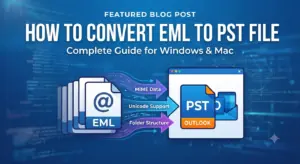



IMAP (Internet Message Access Protocol) is commonly used to access and manage emails across multiple devices. It allows users to view their mailbox through email clients such as Microsoft Outlook, Thunderbird, and other supported applications. However, keeping emails only on an IMAP mail server may not be sufficient when you want a separate local copy of your mailbox.
This is why many users look for ways to backup IMAP to PST. PST (Personal Storage Table) is an Outlook data file format that allows users to store emails and other supported mailbox items locally. By exporting IMAP emails to PST, you can keep a separate copy of your mailbox, access backed-up emails through Outlook, and preserve important email conversations for future use.
Whether you use Gmail, Yahoo Mail, Outlook.com, Zoho Mail, or a business email account with IMAP access, there are different ways to export your mailbox data to PST.
In this guide, I will explain how to backup IMAP emails to PST using Microsoft Outlook and a dedicated IMAP backup tool. I will also cover the limitations of each method to help you choose the right solution.
Why Backup IMAP Emails to PST?
Before discussing the methods, let’s understand why users need to convert or export IMAP emails to PST.
-
Create a Local Email Backup: Save a separate copy of your mailbox on your computer instead of depending entirely on the mail server.
-
Access Emails Offline: Open backed-up email data in Microsoft Outlook without continuously connecting to the IMAP server.
-
Prevent Email Data Loss: Keep an additional copy of important business and personal email conversations.
-
Email Migration: Use a PST file when moving email data to another Outlook account or supported Microsoft Exchange environment.
-
Free Up Mailbox Storage: Preserve older emails locally before removing unnecessary messages from the server.
-
Maintain Business Records: Keep important email conversations for future reference, documentation, and recordkeeping.
What Is the Difference Between IMAP and PST?
IMAP and PST serve different purposes.
IMAP is an email protocol that synchronizes mailbox messages between an email server and connected email applications. When you read, send, or organize emails, the changes are generally synchronized with the server.
PST is a local Outlook data file that stores email messages and other supported Outlook items. It can be opened or imported into Microsoft Outlook.
In simple words, IMAP helps you access and synchronize emails, whereas PST helps you store email data locally.
Method 1. Backup IMAP to PST Using Microsoft Outlook
Microsoft Outlook provides an inbuilt Import/Export wizard that allows users to save their IMAP mailbox data into a PST file.
This method is suitable if you have already configured your IMAP email account in classic Outlook and want to create a local backup without using additional software.
Steps to Export IMAP Emails to PST Using Outlook
Step 1. Add Your IMAP Account to Outlook
-
Open Microsoft Outlook (Classic) on your Windows computer.
-
Click File and select Add Account.
-
Enter your IMAP email address.
-
Configure the incoming and outgoing IMAP/SMTP server settings if required.
-
Complete the authentication process.
-
Wait until Outlook synchronizes your mailbox folders and emails.
Step 2. Synchronize All IMAP Emails
Before exporting, make sure Outlook has downloaded all the emails you want to back up.
-
Open Outlook and click File.
-
Select Account Settings and then Account Settings again.
-
Select your IMAP account.
-
Click Change or open the account’s synchronization settings, depending on your Outlook version.
-
Set the Mail to Keep Offline slider to All, if available.
-
Allow Outlook to finish synchronizing the mailbox.
This step is important because Outlook may download only a limited period of emails by default.
Step 3. Open the Import/Export Wizard
-
Click the File tab.
-
Select Open & Export.
-
Click Import/Export.
-
Choose Export to a file.
-
Click Next.
Step 4. Select PST Format
-
Select Outlook Data File (.pst).
-
Click Next.
-
Select your configured IMAP email account.
-
Check the Include subfolders option to include the mailbox folders and their contents.
-
Click Next.
Step 5. Choose the Destination Location
-
Click Browse.
-
Select a folder where you want to save the PST file.
-
Enter a suitable file name.
-
Click Finish.
-
Set a password for the PST file if required.
Outlook will now start exporting the selected IMAP mailbox data into a PST file.
Reference: Microsoft Outlook export instructions.
Microsoft Support+1
Limitations of This Method
-
You must configure the IMAP account in Outlook before exporting.
-
Outlook needs to synchronize the required emails before the backup.
-
Large mailboxes can take considerable time to synchronize and export.
-
You can export only one account at a time through the classic Outlook export wizard.
-
Outlook’s export process does not automatically provide recurring incremental backups.
-
Some IMAP folders or messages may require additional attention during export and import.
This method works well for users with a few IMAP accounts. However, managing multiple accounts or backing up large mailboxes can become difficult.
Method 2. Backup IMAP to PST Using SysTools Tool
If you want to back up IMAP emails directly to PST without configuring every account in Outlook, you can use the SysTools IMAP Backup Wizard.
It is designed to download emails from IMAP-based email accounts and save them in different file formats, including PST, MBOX, EML, MSG, PDF, and other supported formats.
The software is useful for individuals, businesses, and IT administrators who need to back up multiple IMAP accounts. You can connect personal, business, and enterprise IMAP mailboxes, select the required folders, apply date filters, and save the downloaded emails locally.
Unlike the Outlook method, you do not need to depend on Outlook’s mailbox synchronization process to perform the backup.
Features of This Software
1. Export IMAP Emails to PST
Download emails from an IMAP server and save them in PST format. The resulting PST file can be opened using a compatible version of Microsoft Outlook.
2. Backup Multiple IMAP Accounts
Add multiple IMAP accounts from the same or different email servers and perform backup operations without configuring each account separately in Outlook.
3. Maintain Original Folder Hierarchy
The software maintains the mailbox folder structure during backup, making it easier to locate emails after exporting them.
4. Apply Date Filters
Use the From Date and To Date options to download emails from a specific period instead of backing up the entire mailbox.
5. Incremental and Delta Backup
Use incremental backup to download newly received emails and Delta Backup to save newly arrived or updated items without repeatedly processing the entire mailbox.
6. Retry Failed Email Downloads
If some emails fail to download due to connectivity or server-related issues, use the retry option to attempt downloading those items again.
7. Configure IMAP Server Settings
The software can automatically detect supported IMAP server details. You can also enter custom IMAP server names and port numbers when required.
8. Split Large PST Files
Divide large PST backup files into smaller parts based on your preferred file size in MB or GB.
9. Generate Backup Reports
Create a consolidated CSV report containing details of the email backup operations.
10. Support Different Export Formats
Apart from PST, the software supports exporting IMAP emails into MBOX, EML, MSG, PDF, EMLX, TXT, CSV, HTML, and MHT formats.
Steps to Backup IMAP Emails to PST Using SysTools
Follow these steps to export your IMAP mailbox to PST format.
Step 1. Download and Launch the Software
Download and install the utility on your Windows computer. Open the application to access the main interface.
Step 2. Enter IMAP Account Details
Provide your IMAP email address and password or app password, depending on your email provider’s authentication requirements.
Enter the IMAP server name and port number if the software does not detect them automatically.
Step 3. Select Mailbox Folders
After connecting successfully, the software loads the available mailbox folders. Select the Inbox, Sent Items, Drafts, or other folders you want to back up.
Step 4. Choose PST as the Export Format
Select PST from the available export formats. Configure the destination path where you want to save the backup file.
Step 5. Apply Date Filters
If you want to back up emails from a specific period, enable the date filter and enter the required start and end dates.
Step 6. Start the Backup Process
Click the Backup button to start downloading IMAP emails to PST. Wait until the process finishes.
Step 7. Verify the PST File
Open Microsoft Outlook and add the generated PST file to check whether the exported emails and folder structure are accessible.
Method 3. Create a PST File from an Existing IMAP Mailbox in Outlook
If your IMAP account is already configured in classic Outlook, you can also create a separate PST file and move or copy the synchronized emails into it.
This method is useful when you want to keep selected IMAP emails in a separate Outlook data file rather than exporting the entire mailbox.
Steps to Create a PST File
-
Open Microsoft Outlook (Classic).
-
Select New Items from the Home tab.
-
Choose More Items.
-
Click Outlook Data File.
-
Enter a name for the new PST file.
-
Choose a password if you want to protect the file.
-
Click OK.
-
Open your IMAP mailbox.
-
Select the emails or folders you want to preserve.
-
Copy or move the selected emails into the newly created PST folder.
You can now access the copied emails through the Outlook Data File.
Limitations:
-
You need to select and transfer the required emails or folders manually.
-
Moving emails may remove them from their original IMAP location after synchronization.
-
It is less convenient when dealing with multiple mailboxes.
-
You must ensure that all required emails have been synchronized before copying them.
Microsoft documents the process of creating Outlook Data Files and using PST files for local storage.
Microsoft Support+1
Method 4. Backup IMAP Emails to PST Using Thunderbird and Outlook
Thunderbird is another email client that supports IMAP accounts. You can use it to access and manage IMAP emails. However, Thunderbird does not natively export mailbox data directly into PST format.
If you want to use Thunderbird for this process, you can export emails in an intermediate format and then import them into Outlook before creating a PST file.
Steps to Export IMAP Emails Through Thunderbird
Step 1. Configure Your IMAP Account
-
Open Mozilla Thunderbird.
-
Add your IMAP email account.
-
Enter your email address and authentication details.
-
Complete the account configuration.
-
Allow Thunderbird to synchronize your mailbox.
Step 2. Install an Email Export Add-on
Use a compatible email export add-on, such as ImportExportTools NG, to export the required mailbox folders.
Step 3. Export Emails
-
Select the mailbox folder you want to export.
-
Right-click the folder.
-
Open the ImportExportTools NG options.
-
Select the required export format, such as EML.
-
Choose a destination folder on your computer.
Step 4. Import Emails into Outlook
-
Open Microsoft Outlook.
-
Import or open the exported email data using a compatible method.
-
Organize the imported emails into the required Outlook folders.
Step 5. Export Emails to PST
Use Outlook’s Import/Export wizard to save the imported emails in PST format.
Limitations:
-
Requires additional add-ons.
-
Involves multiple steps and applications.
-
Thunderbird does not directly create PST files.
-
Folder structure and metadata may require additional attention during conversion.
Which Is the Best Method to Backup IMAP to PST?
The best method depends on the number of IMAP accounts you want to back up and how frequently you need to perform the backup.
If you have only one IMAP account and Microsoft Outlook is already configured, its built-in export option is sufficient.
However, if you manage multiple IMAP accounts, need date-based filtering, or want to perform incremental and delta backups, a dedicated IMAP backup tool is more convenient.
For regular email backup operations, SysTools utility provides multiple export formats, batch account support, folder hierarchy preservation, and options to retry failed downloads.
Frequently Asked Questions
1. Can I convert IMAP emails to PST without Outlook?
Yes. You can use a dedicated IMAP backup application such as SysTools backup tool to download emails directly from an IMAP server and export them into PST format without installing or configuring Microsoft Outlook.
2. Can I backup Gmail IMAP emails to PST?
Yes. Enable IMAP access where required, configure the necessary authentication, and use Outlook or an IMAP backup tool to download Gmail emails into PST format.
3. Can I export multiple IMAP accounts to one PST file?
Yes. SysTools utility provides multiple account backup options and allows users to create a single Outlook PST file after downloading emails. You can also configure separate backup operations according to your requirements.
4. Does IMAP backup to PST include email attachments?
Yes. Supported email attachments are included when exporting messages to PST. However, always verify the exported emails and attachments after completing the backup.
5. Is PST better than MBOX for IMAP email backup?
It depends on your requirements. PST is suitable for users who want to access backed-up emails through Microsoft Outlook. MBOX is useful when working with email clients that support the MBOX format, such as Thunderbird.
6. Can I backup IMAP emails without synchronizing them in Outlook?
Yes. You can use an IMAP-based backup application to connect directly to the mail server and download the required emails without first synchronizing the mailbox through Outlook.
7. Can I backup only selected IMAP emails?
Yes. You can select specific mailbox folders or apply date filters to download emails from a particular period, depending on the method and software you use.
8. What happens to my original IMAP emails after exporting them to PST?
The Outlook export process creates a copy of your selected emails. It does not delete the original messages from the IMAP server. However, if you use a separate backup tool with a delete-after-backup option, review that setting carefully before starting the operation.
Conclusion
Backing up IMAP to PST is a practical way to keep a local copy of important emails and access them through Microsoft Outlook. You can use Outlook’s built-in Import/Export wizard, create a separate PST file, or use Thunderbird with an additional export process.
However, these manual methods can become time-consuming when managing multiple IMAP accounts or large mailboxes.
If you want a simpler way to handle regular IMAP email backups, SysTools solution offers direct IMAP connectivity, PST export, date filters, incremental backup, delta backup, and retry options. Choose the method that matches your mailbox size and backup requirements to keep your important emails available whenever needed.