

A corrupted SQL Server database can interrupt business operations, lead to application failures, and even cause permanent data loss if not handled correctly. Database corruption may occur due to hardware failures, unexpected shutdowns, malware attacks, storage issues, or SQL Server crashes. When corruption occurs, administrators need a reliable approach to restore database consistency without compromising critical data.
In this guide, you’ll learn how to rebuild corrupt SQL Database Files using multiple proven methods. We’ll discuss manual recovery techniques, explain their limitations, and introduce an automated solution that simplifies the process to repair corrupt SQL database effectively.
Common Causes of SQL Database Corruption
Before learning how to Rebuild Corrupt SQL Database Files, it’s important to understand what causes corruption.
Some common reasons include:
- Sudden system or power failure
- Hard drive or storage device failure
- SQL Server improper shutdown
- Virus or malware infection
- Corrupt transaction logs
- File system errors
- Bad sectors on storage devices
- Hardware controller failures
- Human errors during database modifications
Identifying the cause helps prevent future database corruption.
How to Rebuild Corrupt SQL Database Files Using Automated Tool?
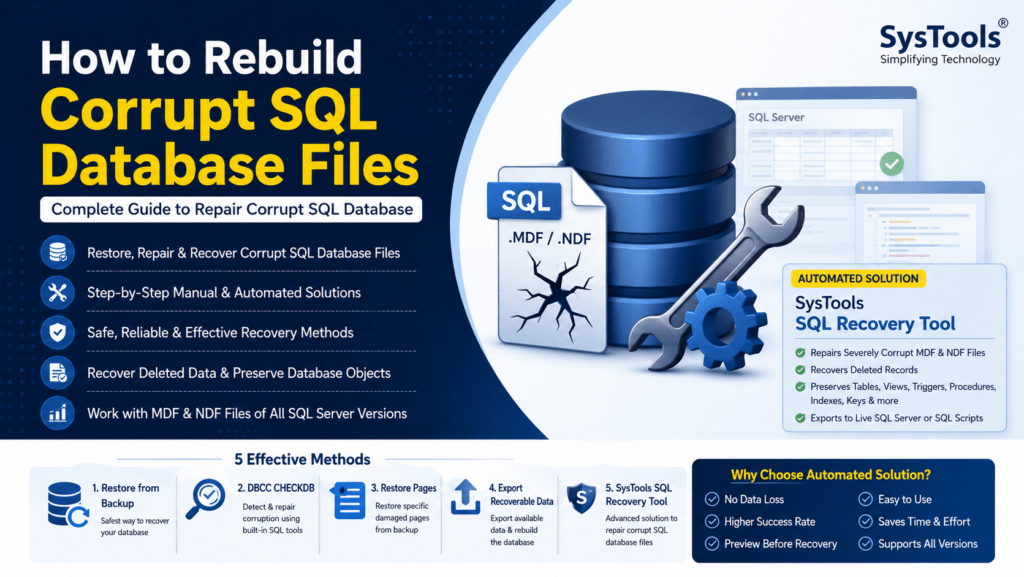
When manual methods fail or the database suffers severe corruption, an automated SQL recovery solution provides a safer and more efficient recovery process. The SysTools SQL Recovery Tool is designed to recover highly corrupted MDF and NDF database files while preserving tables, indexes, triggers, stored procedures, keys, views, functions, and other database objects. It supports recovering deleted records and allows exporting recovered data directly into SQL Server or SQL scripts.
Unlike manual techniques, it minimizes the risk of data loss and works even when SQL Server cannot mount the database.
Steps to Use the Tool
- Download and install the tool.
- Launch the application.
- Browse and select the corrupted MDF file.
- Choose either:
- Quick Scan
- Advanced Scan (for severely damaged databases)
- Start the scanning process.
- Preview recovered database objects.
- Select the required tables and objects.
- Export recovered data to:
- Live SQL Server
- SQL Compatible Scripts
Benefits of this Tool
- Repairs severely corrupted MDF and NDF files
- Recovers deleted SQL records
- Maintains database relationships
- Supports all major SQL Server versions
- Preserves tables, triggers, stored procedures, views, indexes, and keys
- User-friendly interface
- No manual SQL commands required
- Safe recovery without modifying original database files
Method 1: Restore the Database from a Recent Backup
The safest way to recover a damaged database is by restoring a healthy backup. The steps to to know how to rebuild corrupt SQL database files using this method are as follows:
- Open SQL Server Management Studio (SSMS).
- Connect to the SQL Server instance.
- Right-click Databases.
- Select Restore Database.
- Choose the backup (.BAK) file.
- Verify restore settings.
- Click OK to begin restoration.
Advantages:
- Preserves original database structure
- Fast recovery
- Microsoft-recommended method
Limitations:
- Requires an updated backup
- Recent transactions after backup are lost
- Not useful if backup is unavailable or corrupted
Method 2: Use DBCC CHECKDB to Repair Corrupt SQL Database
Microsoft provides the DBCC CHECKDB command to detect and repair logical consistency errors. The steps to to know how to rebuild corrupt SQL database files using this method are given below:
Step 1: Check Database Integrity
DBCC CHECKDB (‘DatabaseName’)
Review the generated report carefully.
Step 2: Enable Single User Mode
ALTER DATABASE DatabaseName
SET SINGLE_USER
WITH ROLLBACK IMMEDIATE;
Step 3: Run Repair
Minor corruption:
DBCC CHECKDB (‘DatabaseName’, REPAIR_REBUILD)
Severe corruption:
DBCC CHECKDB (‘DatabaseName’, REPAIR_ALLOW_DATA_LOSS)
Step 4: Return Database to Multi-User Mode
ALTER DATABASE DatabaseName
SET MULTI_USER;
Advantages:
- Built into SQL Server
- No additional software required
- Repairs minor corruption
Limitations:
- REPAIR_ALLOW_DATA_LOSS may delete damaged records
- Cannot repair severely corrupted databases
- Requires database accessibility
Tips to Prevent SQL Database Corruption
After learning how to Rebuild Corrupt SQL Database Files, consider these preventive practices:
- Schedule regular database backups.
- Monitor SQL Server error logs.
- Use reliable storage hardware.
- Install UPS systems to avoid sudden shutdowns.
- Regularly run DBCC CHECKDB.
- Keep SQL Server updated.
- Monitor disk health.
- Protect servers with antivirus software.
- Avoid abrupt SQL Server termination.
These practices significantly reduce the chances of future corruption.
Conclusion
In this blog, we covered how to Rebuild Corrupt SQL Database Files using multiple recovery techniques. Restoring from backups and using DBCC CHECKDB remain effective options for handling minor corruption. However, these approaches may not recover all data when database damage is extensive or backups are unavailable.
In such situations, an automated solution like the above-mentioned tool provides a reliable way to repair corrupt SQL database files, recover inaccessible MDF/NDF files, restore deleted records, and preserve essential database objects with minimal risk of data loss. By combining proper recovery methods with regular backups and database maintenance, you can protect your SQL Server environment from unexpected failures and ensure long-term data integrity.