
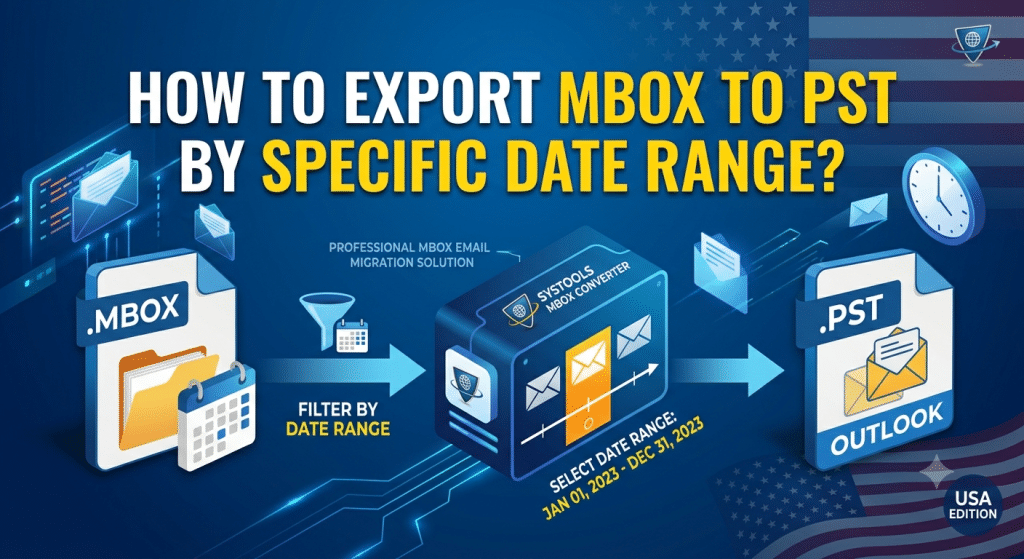

While moving the email archive, conducting the required audit, or responding to eDiscovery requirements from a legal standpoint, migrating the complete mailbox might be redundant. The necessity arises when one has to pull out emails either sent or received within a certain period, which may be a certain financial year, litigation hold period, or the project timeframe.
For anyone who is migrating their email archive from Thunderbird, Apple Mail, Google Takeout, or Qualcomm Eudora, to export MBOX to PST By Specific Date Range is an essential requirement for system administrators as well as forensic specialists.
What the Technical Guideline for the Export MBOX to PST by Specific Date Range
While most online guides consider MBOX files as mere text containers and consider email filter between start and end dates as a piece of cake, in reality there are a lot of technical aspects in order to convert emails according to time ranges:
- File Created Date vs. Internal RFC 5322 Date:
While an MBOX file is being copied from one drive to another, metadata such as Created Date and Modified Date gets altered.
- The Trap: Using a regular file search or some naïve filters to perform the operation results in zero hits and exporting of the entire file.
- The Reality: A good MBOX email date range filter opens up the MBOX file, looks for each From boundary and parses Date: internal RFC 5322 standard line in the structure of MIME header.
- TimeZone Conversions and Boundary Dates Problems
- Emails close to midnight (for example, 23:55:00 -0500 EST on December 31st) may simply get lost if your tool converts everything into UTC (04:55:00 UTC on January 1st).
- During execution of the date-based MBOX conversion task, make sure your filter handles TimeZone correctly and all the boundary-date emails will not be missed.
- Handling Different MBOX Variants
MBOX files are not same in email clients:
- MBOXO which uses standard From separators
- MBOXRD which escapes body text lines starting with “From” as >From.
- MBOXCL or MBOXCL2 which uses content-length: headers to define message boundaries.
If a tool fails to recognize these variants, applying a Data Range option MBOX filter will break message boundaries, corrupting email bodies and skipping date headers entirely.
- Orphan MBOX files without Native Emails Clients
Many of the teams receive raw .mbox or .mbx files from archived servers and Google takeout download. Standard manual methods require recreating the original account profile inside Thunderbird or Apple Mail. A professional utility must operate on orphan MBOX files natively without requiring an active email client profile.
Why Is Selective Date Email Migration Necessary?
When compliance teams request emails from a specific quarter, attempting to Export MBOX to PST by Specific Date Range eliminates unnecessary data overhead.
Key business and technical drivers include:
- eDiscovery & Legal Compliance: Extracting only messages relevant to a subpoena or audit window without exposing confidential company records outside the date range.
- Exchange / Office 365 Quota Management: Keeping target Outlook PST files under the recommended 20 GB to 50 GB threshold to prevent PST corruption and Outlook performance throttling.
- Delta / Incremental Migration: Migrating historical records first, then running a final selective date range email conversion from MBOX to PST to grab only the latest incoming messages prior to cutover.
- Storage & Bandwidth Savings: Decreasing network transfer times when uploading PST archives to cloud tenant mailboxes.
What is the Manual Way to Export MBOX to PST by Specific Date Range And Why It Doesn’t Work?
For manually filtering MBOX by date, people normally use a combination of Mozilla Thunderbird and the ImportExpfortTools NG add-on in addition to an IMAP sync.
Manual Steps:
- Import MBOX using Mozilla Thunderbird along with its add-ons.
- Create a Quick Filter or Saved Search Folder in Thunderbird that will define your date limits (e.g., Date is after AND Date is before).
- Move emails from the Quick Filter to the local folder.
- Set up the live IMAP synchronization for Microsoft Outlook / Exchange.
- Drag & Drop emails from the local folder into the IMAP one, and wait for the sync to be completed.
- From Outlook, go to File > Open & Export > Import/Export, and export this synced folder to PST.
- Cons of Manual Filtering MBOX by Date:
- High Failure Rate: Likely to experience timeout error when trying to work with thousands of emails.
- Lost Headers: Drag & Drop action may remove all original SMTP headers, IP addresses, and embedded images.
- Cannot Filter MBOX Directly: It’s not possible to filter MBOX file by start and end date without importing it into Thunderbird.
Inefficiency: Requires configuring multiple desktop apps and waiting for dual network synchronization.
Which is the Best Professional to Export MBOX to PST by Specific Date Range?
To export specific date range emails with absolute precision and zero data loss, using a dedicated tool like SysTools MBOX Converter is the industry standard.
The software processes orphan MBOX files directly, parses RFC MIME headers, and applies advanced filter conditions before creating the output PST.
Key Features of Date-Based Conversion:
- Date Filters: Define precise ‘From’ and ‘To’ date filters to apply to your messages prior to conversion.
- Batch Processing: Utilize the date filters on multiple MBOX files in one batch process.
- Date Filtered Email Migration: Pick and choose folders (Inbox, Sent Items, Other) to use for the conversion process.
- PST Splitting Tool: Automatically split large output PST files based on size (for instance 2 GB, 5 GB, 10 GB) along with date filters.
- Complete Message Metadata Maintenance: Keeps To, CC, BCC, Timestamps, Attachments, and HTML formatting intact.
How to Add Date Filters in MBOX Converter Tool ?
Step 1: Import MBOX File(s)
- Download and install MBOX Converter.
- Go to Add File under the top navigation ribbon.
- Choose your email client from the source email clients (or pick the Default MBOX File) and add your .mbox file or folder containing more MBOX files.
- Press Process to parse the structure of the mailbox.
Step 2: View the Contents of the Mailbox
- The utility shows a complete directory tree in the left panel.
- Open any folder to see the emails contained inside, their technical SMTP headers, their hex dumps, and the attached files in the embedded preview screen.
Step 3: Set Export & Date Range Filters
- Press the Export or Export Selected button from the menu bar.
- From the Export Options list, choose PST as the file format for export.
- Press the Advanced Settings button.
- Check the Date Filter check-box.
- Pick your preferred start date in the From field.
- Pick your preferred end date in the To field.
- Press Save to save the filter settings.
For the successful Export MBOX to PST with a Particular Date Range, it becomes essential that the software looks at the Date: header inside the email and not at its OS-created date.
Step 4: Running the PST Export Operation
- Define your preferred path destination where your output PST will be saved.
- Select the Split PST option to restrict PST files to certain sizes.
- Click on Export to start the process. The status bar shows live progress updates during conversion.
- Upon completion, the program creates an export log report.
Frequently Asked Questions (FAQs)
Q1: Can we Export MBOX to PST with the help of Date Range without installing Microsoft Outlook?
Answer. Yes, MBOX Converter does not need Microsoft Outlook to be installed. It allows parsing the MBOX files, applying date range filters, and creating PST files on any computer without the installation of MS Outlook.
Q2: What will happen to emails which are sent on the starting or ending date?
Answer. The Date range filter in MBOX is inclusive. For example, when you select the date range from January 1, 2024 to June 30, 2024, all emails which have been timestamped from 00:00:00 on January 1st to 23:59:59 on June 30th will be extracted in PST format.
Q3: What will happen if the email does not have a Date header or the Date header is corrupted?
Answer. In case the headers in MBOX files are corrupted, the converter will take the help of secondary MIME boundaries or else it will log the email in the error report.
Q4: Can I extract MBOX emails during a particular period to PST for more than one MBOX file?
Answer. Sure, there’s an option to add a batch folder comprising multiple MBOX files (say, of various departmental employees or backup emails). The date filter is globally applied to all loaded MBOX files at the same time.
Q5: Does the date filter have any effect on email attachments?
Answer. Not really, Email attachments still stay associated with their corresponding email messages. If an email lies within your date window, then its attachments and images will be imported into your PST as it is.
Summary
While dealing with enterprise migrations and compliance audits, it becomes imperative for one to learn how to export mboxes to pst by specific date range.Trying to manually Export MBOX to PST by Specific Date Range through email client rules leads to loss of metadata and corruption of inline attachments. With a dedicated tool like MBOX Converter, it becomes easy to automate a selective data migration process and conserve storage space as well as maintain data integrity.