
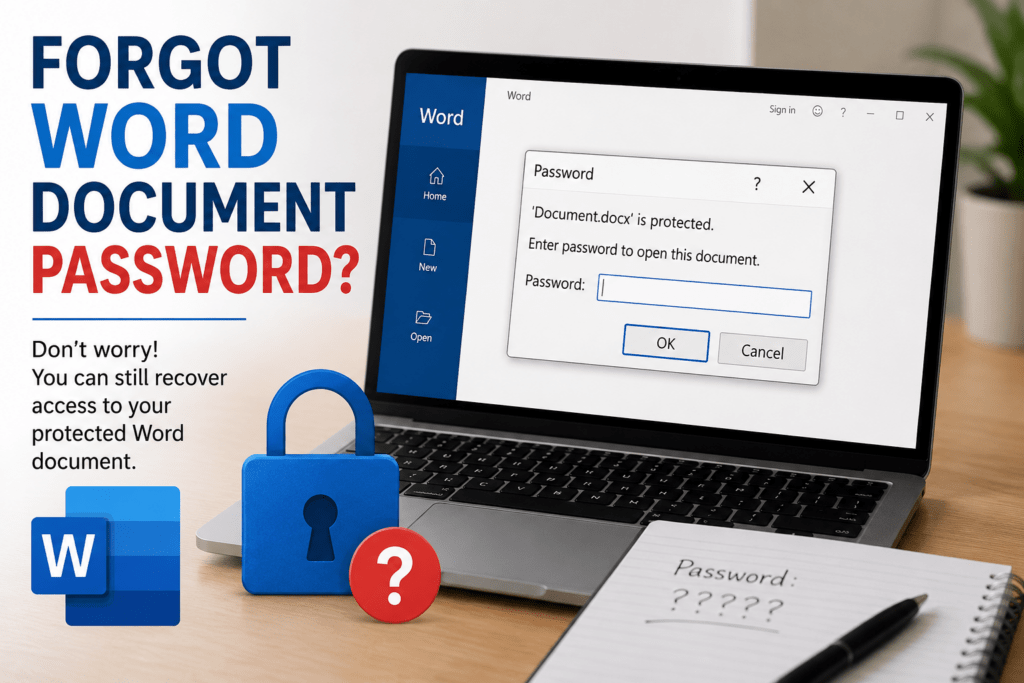

It can be frustrating when you open an important document only to realize you’ve forgotten the password. Whether it’s a work report, academic file, or personal document, losing access can disrupt your plans and waste valuable time. The good news is that forgetting a password doesn’t always mean the file is lost forever. In this guide, we’ll walk through practical methods that may help if you forgot Word document password, starting with simple checks and moving to more advanced recovery options. Additionally, learn how to password-protect a Word document.
Why Do Users Password-Protect Word Documents?
Microsoft Word allows users to secure documents with passwords to prevent unauthorized access. However, situations can arise where users forgot Word document password and are unable to open important files. Password protection is commonly used to safeguard confidential, personal, and business information from unauthorized viewing or editing.
Common reasons users password-protect documents include:
- Protecting business reports and financial records.
- Securing personal information and legal documents.
- Preventing unauthorized editing or modifications.
- Safeguarding academic projects and research papers.
- Maintaining privacy when sharing files online.
- Controlling access to confidential company data.
Methods to Recover Access When You Forgot Word Document Password
If you’ve forgotten the password, don’t panic. Start with the easiest solutions first before moving to specialized recovery methods. In many cases, users regain access through simple troubleshooting steps.
#1. Try Password Variations You Commonly Use
If you forgot Word document password, start by thinking about passwords you commonly use. Many people create passwords based on familiar patterns, names, dates, or favorite phrases. Before moving to advanced recovery methods, try recalling and testing password variations that you may have used when protecting the document.
Try variations based on:
- Favorite numbers or dates.
- Names of family members or pets.
- Common passwords you frequently use.
- Passwords saved in older notes or documents.
- Variations with capital letters or special characters.
Even small changes can make a difference.
#2. Check Password Managers and Saved Notes
If you forgot Word document password, check whether it has been saved in a password manager, notes application, or browser credentials. Many users store important passwords for convenience and may not remember doing so. Reviewing these locations could help you quickly regain access to the protected document without needing additional recovery methods.
Look in:
- Browser password managers.
- Dedicated password management applications.
- Mobile notes apps.
- Personal notebooks.
- Email conversations where the password may have been shared.
Many users recover passwords simply by checking locations they forgot about.
#3. Search for an Unlocked Copy
If you forgot Word document password, don’t immediately assume the file is inaccessible forever. Before spending time on password recovery, check whether another version of the document exists. An older copy stored in cloud storage, email attachments, backups, or shared folders may allow you to access the content without needing to recover the forgotten password.
Check:
- Cloud storage folders.
- Email attachments.
- Shared network drives.
- External hard drives.
- Backup locations.
An older unprotected version may still contain the information you need.
#4. Restore from Backup
If you forgot Word document password, restoring a backup may help you regain access to your content. If backups were enabled on your computer or cloud storage service, you may be able to recover an earlier version of the document that is accessible. Checking available backups can save time and eliminate the need for more complex recovery methods.
Possible backup sources include:
- Windows File History.
- OneDrive version history.
- Company backup systems.
- Third-party backup software.
This method can be especially useful when the original document is no longer accessible.
#5. Try a Dedicated Word Password Recovery Utility
When manual methods fail, a dedicated recovery solution can help recover access to password-protected Word files. SysTools MS Word Password Recovery Software is one option designed to help users recover forgotten passwords from Word documents. Such tools use advanced recovery techniques to identify passwords and restore access to protected files.
Steps to follow:
- Download and install a trusted recovery tool.
- Launch the software on your computer.
- Add the password-protected Word document.
- Select the appropriate recovery mode.
- Start the password recovery process.
- Wait for the tool to identify the password.
- Use the recovered password to open the document.
Recovery Mistakes That Can Cost You Time
If you forgot Word document password, it’s important to avoid mistakes that can make the recovery process more difficult. Many users rush into recovery attempts without a clear plan, which can waste time and reduce the chances of a successful outcome. Before trying advanced solutions, make sure you follow a careful and organized approach.
Avoid these common errors:
- Repeatedly guessing random passwords without a strategy.
- Downloading untrusted recovery software from unknown websites.
- Ignoring available backups before starting recovery.
- Modifying the original file unnecessarily.
- Failing to create a copy before attempting recovery.
- Giving up before checking saved passwords and password managers.
- Using unofficial tools that may damage the document.
Taking a careful and organized approach improves the chances of successful recovery.
Conclusion
If you forgot Word document password, start with simple methods such as checking password managers, trying familiar password variations, and searching for backup copies. These approaches often solve the problem faster than expected. When manual methods are unsuccessful, a trusted recovery solution can provide additional assistance. By following the methods outlined above and avoiding common mistakes, you can improve your chances of regaining access to your important Word documents.