

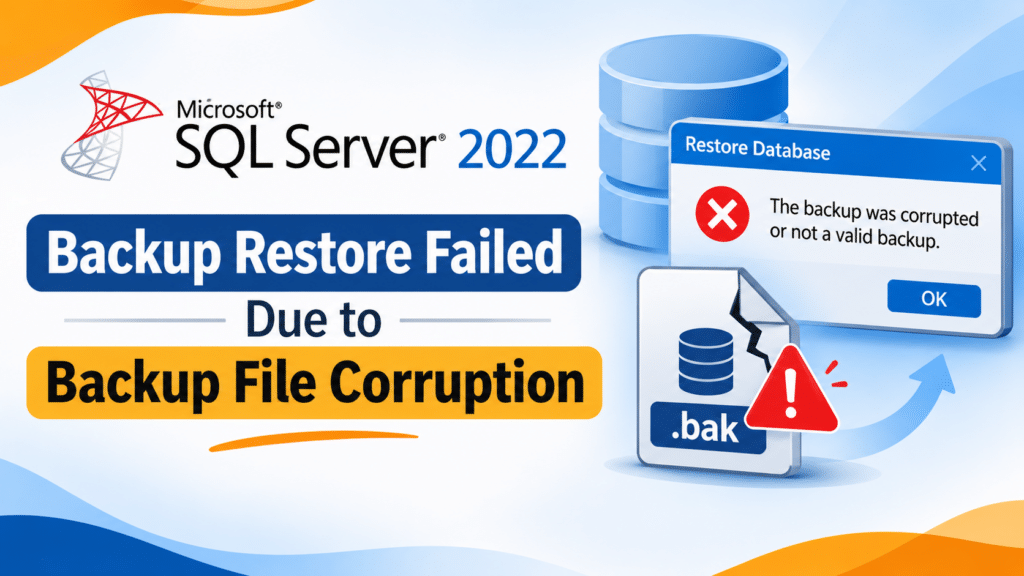

SQL Server backups protect critical database information against accidental deletion, corruption, and unexpected system failures. However, database administrators sometimes encounter restoration failures when attempting to restore a BAK file in SQL Server 2022.
This issue commonly occurs when the backup file is corrupted, incomplete, or unreadable. SQL Server may display errors such as 3241, 3242, 3203, or 3013, preventing the database restoration process from completing.
To recover data when a corrupted BAK file cannot be restored through native SQL Server methods, administrators can use the SysTools SQL Backup Recovery Tool. It helps scan damaged SQL Server backup files, preview recoverable database components, and export accessible information without relying on conventional database restoration.
In this blog, we will discuss the common causes of SQL Server 2022 backup restoration failures and practical methods to resolve them.
Common Causes of SQL Server 2022 Backup File Corruption
A SQL Server backup file can become corrupted during creation, storage, or transfer. Some common reasons include:
- Incomplete Backup: Sudden shutdowns, power failures, or interrupted backup operations can produce incomplete BAK files.
- Storage Failure: Bad sectors, damaged drives, and RAID failures can affect backup file integrity.
- Network Interruptions: Incomplete file transfers between servers or storage locations can damage backup copies.
- Malware Attacks: Malware or unauthorized modifications can make backup files inaccessible.
- File System Errors: Storage media problems can prevent SQL Server from reading backup data.
- Version Incompatibility: SQL Server cannot restore a backup created by a newer version to an older SQL Server instance.
Common Errors When SQL Server 2022 Cannot Restore a Backup
Administrators may encounter different errors depending on the type of backup corruption.
- Error 3241: The media family on the device is incorrectly formed.
- Error 3242: The file on the device is not a valid Microsoft Tape Format backup set.
- Error 3203: Read on device failed.
- Error 3013: RESTORE DATABASE is terminating abnormally.
These errors can indicate backup corruption, storage problems, or other restoration issues. Check the detailed error message to identify the underlying cause.
How to Fix SQL Server 2022 Backup Restore Failure
Try the following methods to troubleshoot the issue and easily backup and restore SQL database.
Method 1: Verify the Backup File Using RESTORE VERIFYONLY
Use the RESTORE VERIFYONLY command to check whether SQL Server can read and validate the backup set.
Execute the following query in SSMS:
RESTORE VERIFYONLY
FROM DISK = ‘C:\Backup\ProductionDB.bak’
WITH CHECKSUM;
Replace the file path with your actual backup location.
If verification succeeds, SQL Server confirms that the backup set is readable and passes the performed checks. However, this does not guarantee successful restoration. Perform a test restore whenever possible.
Method 2: Check Backup Information Using RESTORE HEADERONLY
The RESTORE HEADERONLY command retrieves information about the selected backup file.
RESTORE HEADERONLY
FROM DISK = ‘C:\Backup\ProductionDB.bak’;
Review the database name, backup type, backup dates, SQL Server version, and backup position.
If SQL Server cannot read the backup header, the file may be damaged or invalid.
Method 3: Restore From Another Available Backup
If the selected BAK file is corrupted, try restoring the database from another valid backup.
- Open SSMS and connect to SQL Server.
- Right-click Databases and select Restore Database.
- Select Device as the backup source.
- Browse and select another valid BAK file.
- Select the required backup set.
- Click OK to start restoration.
You can also use T-SQL:
RESTORE DATABASE ProductionDB
FROM DISK = ‘D:\Backup\ProductionDB_Full.bak’
WITH RECOVERY, STATS = 10;
Ensure that the backup is compatible with SQL Server 2022 and represents the required recovery point.
Method 4: Copy the Backup File to Another Location
Sometimes, restoration fails because of storage or file access problems rather than actual corruption.
Copy the BAK file to another local drive and check whether SQL Server can access it.
Also, verify the file size and ensure that the SQL Server service account has the required read permissions. Run RESTORE VERIFYONLY again against the copied file.
Remember that copying a corrupted backup does not repair its contents.
Method 5: Attempt Restoration Using CONTINUE_AFTER_ERROR
If the backup contains recoverable information despite certain errors, you can attempt restoration using CONTINUE_AFTER_ERROR.
RESTORE DATABASE ProductionDB
FROM DISK = ‘C:\Backup\ProductionDB.bak’
WITH CONTINUE_AFTER_ERROR, RECOVERY, STATS = 10;
This option allows SQL Server to continue processing after certain errors. However, restoration may still fail, and the resulting database may contain missing or damaged information.
Use this approach only as a last resort on a separate recovery environment.
After successful restoration, check database consistency:
DBCC CHECKDB (‘ProductionDB’)
WITH NO_INFOMSGS, ALL_ERRORMSGS;
How to Prevent SQL Server 2022 Backup Corruption?
Follow these practices to maintain backup integrity and avoid future restoration failures.
- Enable Backup Checksums: Use CHECKSUM while creating backups to detect certain data integrity problems.
BACKUP DATABASE ProductionDB
TO DISK = ‘C:\Backup\ProductionDB.bak’
WITH CHECKSUM, COMPRESSION, STATS = 10;
- Maintain Multiple Backups: Store backup copies in separate physical or network locations.
- Verify Backup Files: Regularly execute RESTORE VERIFYONLY and perform actual test restorations.
- Monitor Storage Health: Check disk health, RAID configurations, and network storage for potential failures.
- Automate Backup Monitoring: Configure SQL Server Agent jobs to monitor backup operations and notify administrators about failures.
- Run DBCC CHECKDB: Perform regular database consistency checks to identify corruption issues.
Conclusion
SQL Server 2022 backup restoration failures can occur due to corrupted BAK files, storage problems, incomplete backups, and media errors. Administrators should first use RESTORE VERIFYONLY and RESTORE HEADERONLY to investigate the issue.
If native restoration methods fail, try another valid backup or consider a specialized SQL Backup Recovery solution to retrieve accessible database information.
Regular backup verification, multiple backup copies, and periodic test restorations can help prevent unexpected recovery problems.
Frequently Asked Questions
Q1. Why is SQL Server 2022 unable to restore a BAK file?
Common reasons include backup corruption, incomplete backup operations, storage failures, permission issues, and version incompatibility.
Q2. How do I check whether a SQL Server backup is corrupted?
Execute RESTORE VERIFYONLY with CHECKSUM to check backup readability and available checksum information.
Q3. Can I restore a corrupted SQL Server backup file?
It depends on the corruption severity. You can try another backup, troubleshoot storage problems, or use a specialized backup recovery solution to retrieve accessible information.
Q4. What does SQL Server error 3241 indicate?
Error 3241 indicates that SQL Server cannot process the backup media because the media family is incorrectly formed.
Q5. Does RESTORE VERIFYONLY repair a corrupted BAK file?
No. It checks backup readability and certain integrity conditions but does not repair or modify the backup file.
Q6. Can I recover database records without restoring a corrupted BAK file?
Yes. Specialized SQL backup recovery software can scan damaged backup files, preview accessible database components, and export recoverable information without completing a conventional database restoration.