

Buying a 4K television usually creates one expectation: everything should suddenly look sharper.
Then you open an IPTV channel and the picture looks softer than expected. Text around the scoreboard is slightly fuzzy, faces lack detail, or fast sports scenes seem less clear than the same television looks with another streaming service.
That does not automatically mean something is wrong with the TV.
A 4K screen can only display the quality it receives. IPTV picture quality depends on the original stream, resolution, bitrate, video compression, player settings, device output, and internet stability.
Understanding where the quality is being lost can save you from changing settings that were already correct.
A 4K Television Does Not Turn Every Stream Into 4K
This is the first thing to understand.
A 4K television has a display resolution of roughly 3840 × 2160 pixels, but many television streams are delivered at lower resolutions.
A channel might be:
-
SD
-
720p HD
-
1080p Full HD
-
4K UHD
If a 720p channel is displayed on a large 4K television, the TV has to scale that smaller image to fill the screen.
Modern televisions can do this reasonably well, but they cannot recreate detail that was never present in the original stream.
Resolution Is Only Part of Picture Quality
Two streams can both be labelled Full HD and still look very different.
Why?
Because bitrate and compression matter too.
A high-quality 1080p stream can look excellent, while heavily compressed 1080p video may show:
-
Blocky areas
-
Soft faces
-
Blurred grass during sports
-
Loss of detail in dark scenes
-
Smearing during movement
This is why the resolution label alone does not tell the whole story.
Test More Than One Channel
Before adjusting your television, compare several channels.
Try:
-
A news channel
-
A sports channel
-
A movie channel
-
Another HD or 4K channel
If only one channel looks poor, your television settings are unlikely to be the main problem.
If every IPTV channel looks softer than other apps on the same TV, then it makes sense to investigate the IPTV player, device, and output settings.
Sports Reveal Compression Quickly
Football and hockey are particularly useful for judging stream quality.
A sports picture contains:
-
Fast movement
-
Fine detail in the crowd
-
Grass or ice texture
-
Scoreboard text
-
Rapid camera movement
Heavy compression becomes easy to notice.
You may see the field turn into a soft green surface whenever the camera moves quickly, even though close-up shots look sharp.
That usually points more toward video compression than the television itself.
Check the Streaming Device Output Resolution
If you use an external streaming box, check its display settings.
A 4K-capable television connected to a box configured for 1080p will receive a 1080p output from that device.
Look for settings such as:
-
Display Resolution
-
Video Resolution
-
HDMI Output
-
Screen Resolution
If both the TV and streaming device support 4K, an automatic or appropriate 4K output setting may provide the best result.
Do not force a resolution the television or HDMI connection does not support.
Check the HDMI Port
Not every HDMI port on every television necessarily supports the same features.
On some models, particular ports are recommended for higher resolutions or advanced formats.
If your streaming device supports 4K but the television only detects lower output options, check:
-
TV manual
-
HDMI port used
-
HDMI cable
-
Device display settings
An older or damaged cable can also create connection problems.
Do Not Set Sharpness Too High
When a picture looks soft, the natural reaction is to increase the television’s Sharpness setting.
A small adjustment may help, but pushing it too far can make the picture look artificial.
Excessive sharpness can create bright outlines around:
-
Faces
-
Text
-
Players
-
Buildings
-
Objects
Those outlines do not represent real additional detail.
Start from a moderate setting rather than turning sharpness to its maximum value.
Compare Picture Modes
Modern televisions include several picture presets.
You may see options such as:
-
Standard
-
Cinema
-
Movie
-
Dynamic
-
Sports
-
Filmmaker
-
Game
Some modes apply much more image processing than others.
If IPTV looks strangely soft, oversaturated, or overly processed, compare a few modes.
Cinema or Movie modes often aim for a more natural image, while Dynamic modes may increase brightness, contrast, and sharpness significantly.
There is no single best setting for every room or television.
Motion Processing Can Change How Sports Look
Many TVs include motion-smoothing features.
Manufacturers use different names for them, but the purpose is similar: additional frames are created or processed to make motion appear smoother.
This can help some viewers during sports, but aggressive settings may also create unnatural movement or visual artifacts.
If football looks strange rather than simply blurry, try reducing motion processing temporarily.
Compare the result rather than assuming the feature must be either fully on or fully off.
Your IPTV Player Can Affect Video Quality
Different IPTV players may use different playback engines.
That can affect:
-
Video decoding
-
Scaling
-
Frame handling
-
Hardware acceleration
-
HDR behavior
If the same stream looks noticeably better in another compatible player, the original application may be contributing to the issue.
This is why it can be useful to test another legitimate player before replacing hardware.
Hardware Decoding Usually Helps
Some IPTV applications allow users to switch between hardware and software decoding.
Hardware decoding uses the video-processing capabilities built into the device.
On most modern television devices, this is usually the more efficient choice.
If you notice:
-
Choppy playback
-
Poor motion
-
High device temperature
-
Audio problems
testing another decoder setting can be useful when the application provides the option.
Change one setting at a time so you know what actually made a difference.
Internet Stability Can Lower Perceived Quality
A weak connection does not always result in obvious buffering.
Some streaming systems may adjust quality to maintain playback.
That means you could continue watching while the picture becomes softer.
If quality drops at certain times of day, compare your network performance during the problem.
Check:
-
Wi-Fi strength
-
Household downloads
-
Other active streams
-
Router performance
A stable connection is especially important for high-bitrate video.
Try Ethernet as a Test
If the TV or streaming box is near the router, connect it by Ethernet temporarily.
Then watch the same channel again.
If the image quality becomes more stable, Wi-Fi may have been contributing to the problem.
If nothing changes, you can focus more on the source, player, or display configuration.
Ethernet is useful not only as a permanent connection but also as a troubleshooting tool.
Large Screens Make Weak Streams More Obvious
A stream that looks acceptable on a phone may look much worse on a 65-inch television.
This does not necessarily mean the television is poor.
The larger screen simply makes compression and missing detail easier to see.
Imagine stretching a small photograph across a much larger display. The original information has not increased just because the screen is bigger.
The same principle applies to lower-resolution video.
Sitting Distance Matters
Picture quality is also influenced by how close you sit to the television.
At a very short viewing distance, compression and scaling become more noticeable.
Moving slightly farther back can make a lower-resolution stream appear cleaner.
This does not fix the source quality, but it changes how easily imperfections can be seen.
Compare IPTV With Another Source
Open another streaming application on the same television.
Choose content you know is available in high quality.
If that looks extremely sharp while IPTV remains soft, the television panel is clearly capable of producing a detailed image.
That comparison moves your attention toward:
-
IPTV source quality
-
Player
-
Streaming device
-
Connection
It is one of the easiest ways to avoid blaming the wrong component.
4K Labels Should Be Treated Carefully
A channel name containing “4K” does not by itself prove the underlying video is native 4K.
Picture quality depends on what is actually being delivered.
A genuinely high-quality 1080p source can sometimes look better than a poorly compressed or upscaled stream labelled 4K.
Judge the picture you see rather than the name attached to the channel.
HDR Can Make a Picture Look Different
Some 4K televisions support HDR.
HDR can improve brightness range and color when the content, device, player, and television all support compatible formats.
However, incorrect HDR handling can sometimes produce:
-
Washed-out colors
-
Very dark images
-
Unnatural brightness
If only certain IPTV streams look strange, compare HDR settings on the streaming device.
Do not force HDR for all content unless the device is designed to handle the conversion correctly.
Check Whether the Device Is Overheating
Small streaming boxes can become warm during high-resolution playback.
If a device is hidden behind the TV or inside a closed cabinet, heat can build up.
Performance problems may include:
-
Dropped frames
-
Slower menus
-
Playback instability
-
Reduced responsiveness
Move the box into a more open position and make sure its ventilation is not blocked.
Keep the IPTV App and Device Updated
Updates can improve support for:
-
Video codecs
-
Hardware decoding
-
4K playback
-
HDR
-
Frame rates
-
Device compatibility
Keep both the IPTV player and the streaming-device operating system reasonably current.
Use official or trusted update sources.
Nordic IPTV Viewing and Picture Quality
Nordic viewers often watch a mixture of local television, international entertainment, and live sports, so stream quality may vary considerably between channels.
Users comparing Nordic-focused IPTV services and compatible devices may encounter Nordic IPTV King while researching IPTV options for Sweden and the wider Nordic region.
Whatever service is being used, evaluate picture quality on the device and screen you actually plan to watch rather than relying only on resolution labels.
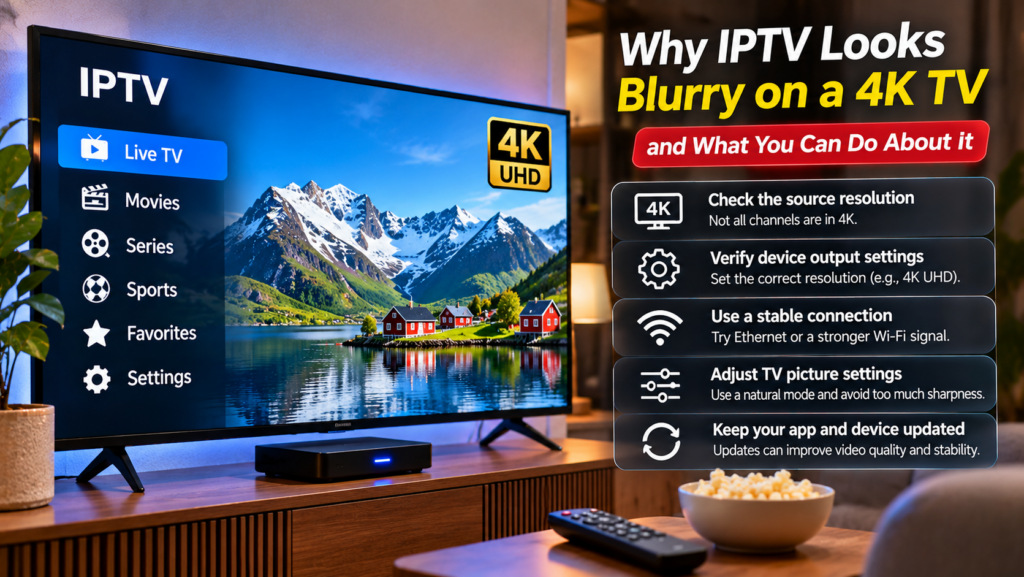
A Simple Picture Quality Checklist
If IPTV looks blurry on your 4K television, try this order.
1. Test several channels
Find out whether the issue affects one stream or everything.
2. Compare another streaming app
Confirm what the television can display from another high-quality source.
3. Check the streaming-device resolution
Make sure the output matches your television’s capabilities.
4. Try another IPTV player
Compare how the same stream is decoded.
5. Check Wi-Fi or Ethernet
Rule out network instability.
6. Review television picture settings
Avoid excessive sharpness and aggressive processing.
7. Check the HDMI connection
Make sure the correct port and cable are being used.
8. Update the player and device
Install supported software updates.
Working through the setup step by step is much more useful than changing every picture control at once.
Do Not Factory Reset the TV Too Early
A slightly soft IPTV picture rarely justifies wiping the television completely.
A factory reset can remove:
-
Wi-Fi settings
-
Picture preferences
-
App logins
-
Installed applications
-
Device configuration
Use it only when there is evidence of a wider television problem and simpler troubleshooting has failed.
Use Legitimate Streaming Sources
Image resolution and picture quality do not indicate whether a stream is legally licensed.
Use legitimate IPTV and streaming services that have appropriate rights to distribute their content and follow applicable service terms and copyright rules.
Final Thoughts
A 4K television can display an excellent picture, but it cannot create detail that is missing from the source.
If IPTV looks blurry, start by comparing several channels and another streaming application. Then check the player’s decoding, device output resolution, network stability, HDMI connection, and television picture settings.
In many cases, the television itself is working exactly as intended.
The real improvement comes from identifying whether the limitation begins with the stream, the IPTV player, the streaming device, or the connection.