

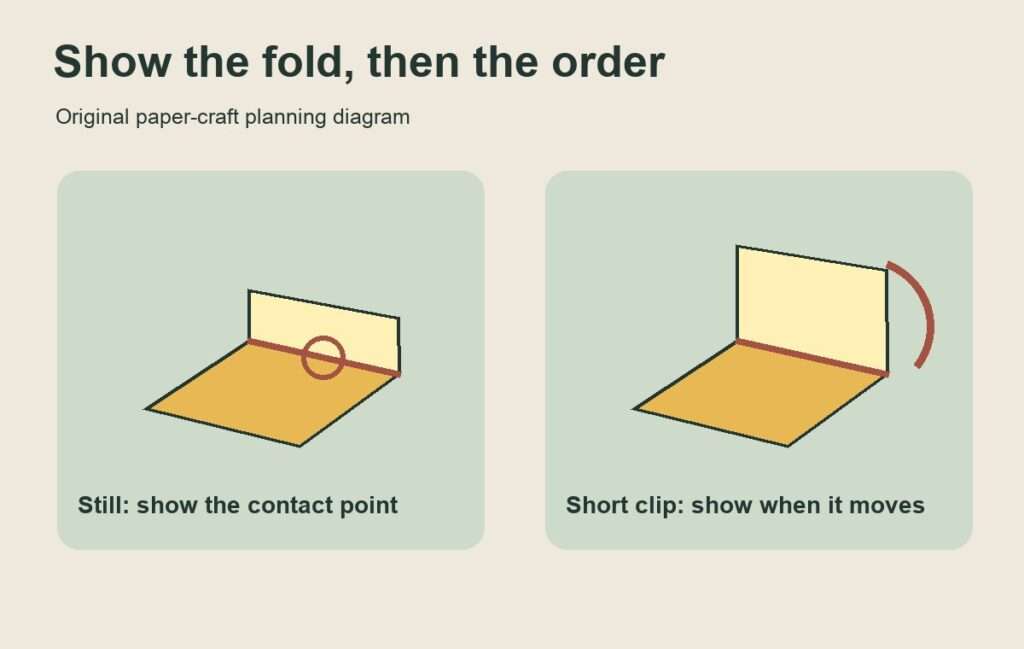

A paper box can look straightforward until a customer reaches the small tab that has to fold inside a corner. A photo can show where the tab belongs. A short clip can show the order of the movement. The useful question for a seller is which detail the customer needs at that moment.
This article uses a hypothetical paper box to plan both versions. The images and motion described are a proposed demonstration, not a record of a completed craft or a tested generated video. For instructions that customers will actually follow, use your own accurate drawings or footage of the real operation.
Disclosure: Flyne, FLAQ and AI VideoWeb are related brands mentioned below. Their tools are optional ways to explore a visual concept.
Start with one decision: where, or in what order?
Imagine that the box is already cut and creased. The instruction is to fold a small side tab inward, hold it against the inside of the corner, and press it into place. The customer needs to see the contact point between the tab and the inner wall.
A still image is a good first choice when the main question is where. It can remain on screen while someone finds the tab, and a line or arrow can point to the precise contact point. A short clip can help when the main question is in what order: fold, position, then press. For a subtle action, the two formats often work best together.
- Position: Use a labeled still if readers need to locate the tab and corner.
- Order: Use a short clip if readers need to see the sequence of the movement.
- Both: Keep the still beside the clip and check that both show the same box, tab and orientation.
Make the still useful on its own
Use your own drawing or take a close photograph of the real box at the relevant step. Arrange the view so the tab edge and inner wall do not overlap completely. Add one arrow toward the inside of the corner and a short label such as “Fold tab inward.” If pressing the tab is part of the real construction, mark the contact point with a second, distinct label.
Show the complete corner, not just a tight crop of paper texture. Keep the label outside the moving part so it does not obscure the fold. At phone size, check that the reader can still tell the tab from the adjoining wall. A text instruction beside the image gives people another way to follow the step.
Plan the clip around the same contact point
Keep the camera angle and box orientation consistent with the still. A simple three-beat shot list makes it easier to check what the viewer will see:
-
Before: the tab and inside wall are visible, with a little space between them.
-
Movement: the tab folds inward while the contact point stays in view.
-
After: the tab rests against the inside wall; hold the final view briefly so the position can be inspected.
For an actual tutorial, film the step with the real materials, or create an accurate sequence of drawings. If a hand hides the contact point, change the camera angle or use a second shot. Compare the finished clip with the still and the written instruction: the tab should not move to a different side or pass through the paper. If the clip makes the action harder to follow, keep the still and revise the video.
Use generated motion to explore a presentation idea
A free image to video generator can help a team discuss how a shot might look before arranging a real shoot. If you have rights to adapt and upload your drawings, prepare compatible first and last frames of the same box corner. Flyne AI’s free image to video generator accepts an ordered pair of endpoint images for image guidance; describe the intended movement between them. Its free page describes five-second, 480p clips; verification and a wait in the free queue may still be involved.
Review the entire result against the real instruction. Generated movement can invent extra folds, obscure the contact point, or change the shape of the tab. Label any generated clip as a concept and do not present it as footage of the actual process. For a customer-facing instruction, use the verified drawing or real footage if the generated sequence is inaccurate or ambiguous.
If you have only a written idea, FLAQ AI’s free text to video generator offers a text-first route for exploring a possible shot. If you want to choose between describing the shot in words and providing two endpoint images, AI VideoWeb’s free AI video generator offers both routes. Either way, treat the output as a visual idea to inspect, not evidence that the craft works as shown.
Choose what the customer will actually use
Before publishing, view the still and clip at the size your customers will see. Ask whether the contact point is visible, whether the written instruction matches the image, and whether the video adds a useful sense of sequence. Keep a text explanation available even when the video is included.
If the movement is simple but the position is hard to locate, lead with the still. If the order is easy to misunderstand, add a short, accurate clip. The goal is to make the one difficult step clearer, so the customer can continue making the box with confidence.