

10.0.0.1 Login Admin – Access Router Settings, Change WiFi Password and Manage Your Network
Internet connectivity has become an essential part of everyday life. Whether you use the internet for work, education, entertainment, or communication, having a secure and properly configured WiFi network is important. However, many people do not know how to access their router settings or manage connected devices.
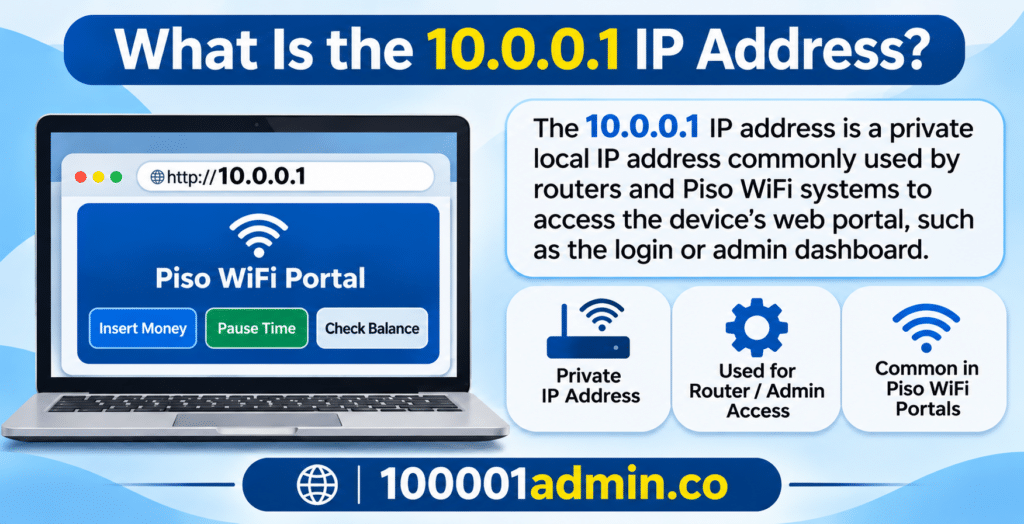
This is where 10.0.0.1 Login Admin becomes useful. The IP address 10.0.0.1 is a private IPv4 address that some routers and network gateways use as their default administration address. It allows authorized users to open a router’s management interface and configure different network settings.
Through the router admin panel, users may be able to change their WiFi password, update the network name, manage connected devices, and improve wireless security.
In this guide, we will explain how 10.0.0.1 works, how to access the router login page, how to change WiFi settings, and how to troubleshoot common login problems.
What Is 10.0.0.1 IP Address?
The IP address 10.0.0.1 belongs to the private IPv4 address range. It is commonly used within local networks for communication between routers and connected devices.
Some router manufacturers and internet service providers configure this address as a default gateway or administration address.
When your router uses 10.0.0.1, you can enter it into a web browser while connected to the correct network to access its administration interface.
The router dashboard may provide several management options, including:
-
WiFi network configuration
-
Wireless password management
-
Connected device information
-
Network security settings
-
Guest WiFi configuration
-
DHCP and IP address settings
-
Router maintenance options
Not every router uses the same IP address. Other common router addresses include 192.168.1.1 and 192.168.0.1.
How to Access 10.0.0.1 Login Admin
Accessing your router administration page is usually straightforward when you know the correct gateway address.
Follow these steps:
Step 1: Connect to Your WiFi Network
Connect your smartphone, laptop, or computer to the router you want to manage.
You can use WiFi or an Ethernet cable. A wired connection can be particularly useful when changing wireless settings.
Step 2: Open a Web Browser
Open a compatible browser such as Google Chrome, Mozilla Firefox, Safari, or Microsoft Edge.
Step 3: Enter the Router IP Address
Type the following address into your browser’s address bar:
http://10.0.0.1
Make sure you enter it in the address bar rather than a search engine.
Step 4: Enter Administrator Credentials
If your router uses this address, a login page may appear.
Enter the administrator username and password configured for your router.
Remember that your router admin password and WiFi password may be different.
Step 5: Open the Admin Dashboard
After successful authentication, you can explore the available router settings.
Depending on your router model, you may find Wireless Settings, Network Configuration, Security, Connected Devices, and Advanced Settings.
Only make changes to networks and devices you own or are authorized to administer.
10.0.0.1 Default Username and Password
Many users search for the default router username and password when they cannot access their administration dashboard.
However, there is no universal username and password combination for every router using 10.0.0.1.
Some devices use manufacturer-provided credentials, while others require users to create an administrator password during the initial setup.
You can find the correct login information through:
-
The router’s information label.
-
The official user manual.
-
Your internet service provider.
-
The manufacturer’s support website.
-
The administrator credentials created during setup.
For security reasons, avoid using guessed passwords or sharing your administrator credentials with strangers.
How to Change Your WiFi Password Using 10.0.0.1
Changing your WiFi password regularly can help protect your wireless network from unauthorized access.
Follow these general steps:
-
Connect to your router.
-
Open a browser and enter 10.0.0.1.
-
Sign in using your administrator credentials.
-
Navigate to Wireless Settings or WiFi Settings.
-
Find the Password, Security Key, or Pre-Shared Key option.
-
Enter a new strong password.
-
Save the configuration.
Your router may restart its wireless connection after saving the changes.
You will need to reconnect your smartphones, laptops, and other devices using the updated password.
Choose a password that is difficult to guess and avoid using personal information.
How to Change WiFi Name (SSID)
The SSID is the name displayed when nearby devices search for available wireless networks.
Changing your WiFi name can help you recognize your network, especially in locations with multiple wireless connections.
To change the SSID:
-
Open your router admin panel.
-
Navigate to Wireless Settings.
-
Find the SSID or Network Name field.
-
Enter your preferred network name.
-
Save the changes.
Some routers provide separate names for 2.4 GHz and 5 GHz networks.
How to Find Your Router IP Address
If 10.0.0.1 does not open, your router may use another gateway address.
You can find the correct address through your device settings.
Android
Open Settings, select WiFi, and tap your connected network.
Look for Gateway, Router, or Network Details. The exact option depends on your Android device.
iPhone
Open Settings and select WiFi.
Tap the information icon beside your connected network and find the Router field.
Windows
Open Command Prompt and enter:
ipconfig
Find the Default Gateway entry under your active network connection.
Mac
Open System Settings, select Network, and view the details of your active connection. Locate the router address in the TCP/IP section.
How to Manage Connected Devices
Your router administration panel may provide a list of devices currently connected to your WiFi network.
This feature can help you identify unfamiliar devices and monitor your network.
To review connected devices:
-
Log in to your router admin panel.
-
Find Connected Devices or Client List.
-
Review the displayed device names and addresses.
-
Compare them with your own smartphones, computers, and other equipment.
-
Use available access controls when necessary.
If you identify an unauthorized device, changing your WiFi password and reviewing your security settings can help protect your network.
What Is Piso WiFi?
Piso WiFi is a term commonly associated with prepaid or coin-operated public WiFi services, particularly in the Philippines.
These networks allow users to purchase internet access for a selected period through a vending or payment system.
Some Piso WiFi systems provide a captive portal where customers can enter payment information or access available internet packages.
The management options depend on the specific hardware and software configuration.
People may also search for Piso WiFi login, Piso WiFi admin panel, and 10.0.0.1 Piso WiFi when trying to access their local network settings.
Always use the official administration instructions supplied with your own Piso WiFi equipment.
Difference Between 10.0.0.1 and 10.0.0.0.1
Many people mistakenly search for 10.0.0.0.1 when trying to access their router administration page.
However, these addresses are not the same.
10.0.0.1 is a valid IPv4 address containing four numerical groups.
10.0.0.0.1 is not a valid IPv4 address because it contains five numerical groups.
If you are trying to access your router dashboard, check the actual gateway address shown in your device’s network settings.
Entering the correct address can help prevent unnecessary login errors.
Common 10.0.0.1 Login Problems and Solutions
Sometimes the router login page may not open or the administrator credentials may not work.
Here are some common problems and their solutions.
1. 10.0.0.1 Is Not Opening
Make sure your device is connected to the correct router network. Check the gateway address and enter it correctly in your browser.
2. Incorrect Username or Password
Check the router label or official manual. If you previously changed the administrator password, use your updated credentials.
3. Internet Connection Problems
A weak or disconnected network can affect access to the router dashboard. Check your WiFi connection and restart your router if necessary.
4. Browser Issues
Try another updated browser or clear the browser cache if the login page does not load correctly.
5. Router Configuration Problems
If your router settings are incorrect, consult the manufacturer or internet provider before performing a factory reset.
A factory reset can erase custom WiFi settings and other configurations.
Tips to Secure Your Router
Keeping your router secure is important for protecting personal devices and network information.
Follow these recommendations:
-
Change default administrator credentials.
-
Use a strong WiFi password.
-
Enable WPA2 or WPA3 security when supported.
-
Keep router firmware updated.
-
Disable remote administration if unnecessary.
-
Review connected devices regularly.
-
Avoid sharing your administrator password.
-
Use a guest network for visitors when available.
These practices can help improve your home or office network security.
Frequently Asked Questions About 10.0.0.1
1. What is 10.0.0.1 used for?
10.0.0.1 is a private IP address that can be used as a router gateway or administration address on certain local networks.
2. How do I access 10.0.0.1 login admin?
Connect to the correct WiFi network, open a browser, enter and sign in using your configured administrator credentials.
3. What is the default username and password?
There is no universal login combination. Check your router label, official manual, or internet provider’s instructions.
4. Can I change my WiFi password using 10.0.0.1?
Yes, if your router uses this address and you have authorized administrator access.
5. Is 10.0.0.0.1 a valid IP address?
No. A standard IPv4 address contains four numerical groups, while 10.0.0.0.1 contains five.
6. Can I access 10.0.0.1 on Android?
Yes. You can use a mobile browser while connected to the router’s WiFi network.
7. Why is my router login page not opening?
Your device may be connected to the wrong network, the router may use another gateway address, or administration access may be restricted.
8. Is 10.0.0.1 the same as 192.168.1.1?
No. Both are private IPv4 addresses, but they are different addresses. Your router determines which one is used.
Final Thoughts
The 10.0.0.1 Login Admin address can be an important starting point for managing your home or office network.
When your router uses this address, its administration dashboard allows authorized users to manage WiFi passwords, change network names, review connected devices, and configure available security settings.
Understanding how to find your router IP address and access the correct login page can make network management easier.
Always use the correct administrator credentials, protect your wireless network, and follow your router manufacturer’s instructions when changing advanced settings.
With the right configuration, you can maintain a more organized, secure, and reliable WiFi network.
https://payhip.com/b/yx2aX
https://app.livepositively.com/technology/10001-login-admin-access-router-settings-change-wifi-password-and-manage-your-network
https://tiktokio2.blogspot.com/2026/11/10001-login-admin-access-router.html
https://logcla.com/blogs/2187252/10-0-0-1-Login-Admin-Access-Router-Settings-Change
https://sites.google.com/view/100001-/home
https://md.globenet.org/s/Wm8ZL9xaX
https://gettr.com/post/p466dfie1c3