
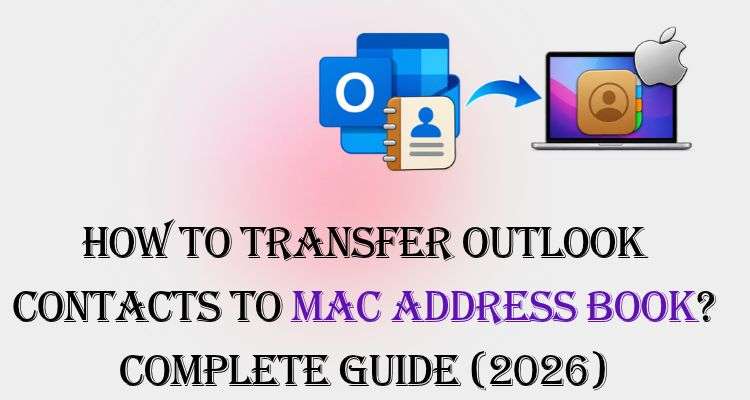

Many customers choose to migrate their Outlook contacts to the Mac Address Book when they move from Outlook to the Apple environment or have an Outlook backup they want to view on a Mac. Outlook keeps your contacts as PST files, which you can’t import straight into the Mac Address Book. Before they can be inserted properly, they need to be converted to a compatible format like vCard (VCF).
In this post, we’ll look at two proven methods for importing Outlook contacts into your Mac Address Book. The first way is manual and involves some technical knowledge and careful execution. If you want a faster, easier option, we’ll also show you an automated solution that can get the job done in a matter of minutes, keeping your contact details safe and accurate.
Method 1: Export Outlook Contacts and Import Them into Mac Address Book Manually
If you have your contacts in an Outlook PST file, you can’t import them directly to the Mac Address Book. The contacts should be exported from Outlook and saved as vCard (.vcf), which Apple Contacts can use. Follow the steps below to finish the procedure.
Step 1: Export Outlook Contacts as vCard Files
- Open Microsoft Outlook on your Windows machine.
- On the navigation pane, click the People or Contacts icon.
- Choose the contact(s) you would want to transfer.
- File -> Save As.
- Select the folder where you wish to save the exported contacts.
- Type a file name and select vCard (*.vcf) as the file type.
- Click Save to generate the VCF file.
- Once the export is complete, please locate the exported VCF file and verify that it contains the necessary contact details.
Limitation of the Manual Method
- This process is a multi-step procedure and can be time-consuming, particularly if you have a large number of connections.
- Exporting contacts one by one may not be practicable if you have a large list of connections.
- Conversion may result in missing or inaccurate contact information.
- You’ll need to ensure the VCF files you exported are compatible with your version of Apple Contacts.
- If you just have a PST backup on a Mac, you cannot do this, since you normally need Outlook for Windows to export contacts to VCF format.
Method 2: Convert Outlook Contacts for Mac Address Book with a Professional Tool
For this kind of situation, you can use a professional tool like WholeClear PST to VCF Converter, which is used for migrating numerous Outlook contacts to Mac Address Book. This tool converts Outlook PST contacts to VCF (vCard) format, which you can use with the Mac Contacts app. It allows users to upload PST files, preview the contact information, and export multiple contacts in bulk without having to save each contact manually. The conversion procedure helps to preserve crucial facts such as names, phone numbers, email addresses, and other contact information.
Steps to follow:
- Download and install the WholeClear PST to VCF Converter Tool.
- Add the Outlook PST file with the contacts.
- Scan and preview available contacts.
- Choose the desired contacts and the target folder.
- Click Convert to export contacts in VCF files.
- Copy the exported VCF files to the Mac.
- Open the Mac Contacts program and choose File > Import.
- Choose the VCF files to import the contacts.
Key Features of the Automated Solution
- Bulk Contact Conversion: Export a large number of Outlook contacts to VCF format at once.
- Contact Preview: Preview Outlook contacts before conversion.
- Keeps Contact Info: Stores available names, phone numbers, email addresses, and other contact information.
- Selective Export: Choose particular contacts to export.
- Standalone Software: No need to install Microsoft Outlook.
- VCF Compatibility: Creates vCard files that can be imported into Mac’s Address Book.
- Simple Interface: Non-technical individuals can do a straightforward conversion process.
- Free Demo: Try out the conversion process before you buy the complete version.
Conclusion
Getting your Outlook contacts into the Mac Address Book is easy if you use the appropriate method. The manual technique works if you have just a few contacts to transfer and don’t mind following a series of procedures. However, it can be time-consuming and may not be the best option for large PST files or bulk contact conversion.
If you are seeking a faster and more reliable solution, then employing a professional PST to vCard for Mac program is a realistic choice. It directly converts Outlook contacts to VCF format and saves your contact information. The whole process is basic with just a few clicks.
FAQs
1. How to Import Outlook Contacts to Mac Address Book?
You can export Outlook contacts in VCF (vCard) format and then import them into the Mac Address Book. You can use any tool like WholeClear PST to VCF Converter, to export multiple Outlook contacts and import them into the Mac Contacts app.
2. Which is the best tool to transfer Outlook contacts to Mac Address Book?
WholeClear PST to VCF Converter is the right alternative. It converts Outlook PST contacts to the VCF format that is used with Mac Address Book.
3. Can I move many Outlook contacts to Mac simultaneously?
Yes, you can export numerous Outlook contacts in bulk using a PST to VCF converter. That way, you don’t have to save every contact.