
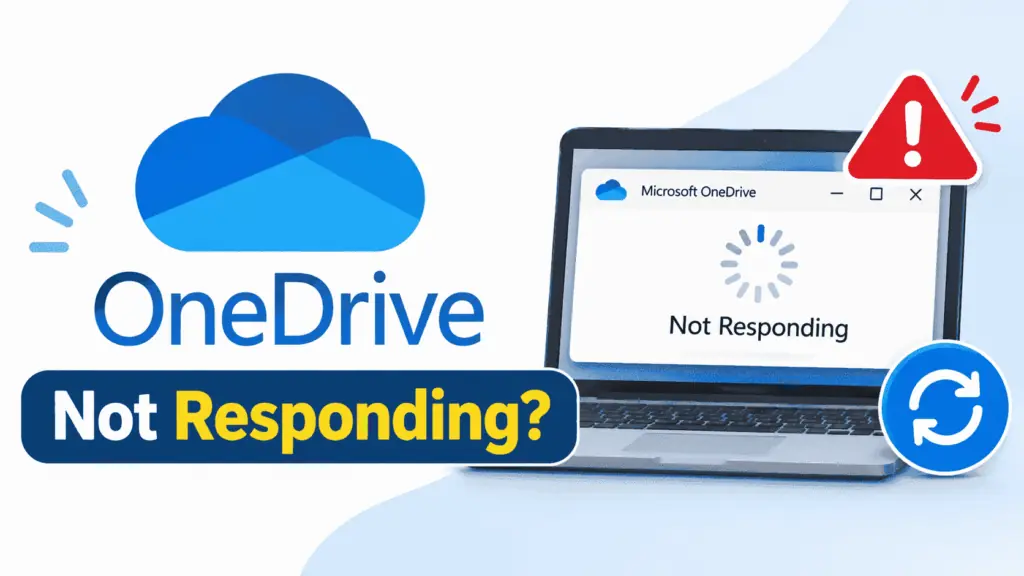

OneDrive is a popular cloud storage service that allows users to store, synchronize, and access their files across multiple devices. However, sometimes you may notice that OneDrive is not responding when you try to open the application, upload files, download documents, or synchronize folders. The application may become stuck on the loading screen, stop syncing, freeze unexpectedly, or display a Not Responding message.
There are several reasons behind this issue, including an unstable internet connection, corrupted application cache, outdated OneDrive software, insufficient storage, incorrect account settings, and Windows-related problems. Sometimes, antivirus restrictions or background application conflicts can also prevent OneDrive from working properly.
If you are experiencing this problem, don’t worry. In this guide, I will explain why your OneDrive is not responding and provide 10 practical solutions to fix the issue on your Windows computer. I will also explain how to protect your important files if OneDrive stops working unexpectedly.
Why Is My OneDrive Not Responding?
Before moving toward the solutions, it is important to understand what causes OneDrive to freeze or stop responding. Identifying the actual reason can help you choose the right troubleshooting method instead of trying unnecessary fixes. Here are the common factors responsible for this problem.
- OneDrive requires a stable internet connection to synchronize files with the cloud. If your network is unstable, the application may become unresponsive during synchronization or file uploads.
- OneDrive stores temporary files and cache data to improve application performance. If these files become corrupted, the application may freeze, fail to launch, or stop synchronizing.
- Running an older version of OneDrive can cause compatibility problems with Windows and prevent certain application features from working correctly.
- When your OneDrive cloud storage or local disk is full, uploading and synchronizing files may fail. This can sometimes make the application appear stuck.
- Expired login sessions, incorrect credentials, or account synchronization problems can prevent OneDrive from connecting to your Microsoft account.
- Outdated Windows components, temporary system errors, and compatibility problems can affect the normal functioning of OneDrive.
- Sometimes, security software mistakenly blocks OneDrive processes or restricts its internet connection, causing synchronization problems.
- Synchronizing a large number of files simultaneously can consume system resources and make the OneDrive application slow or temporarily unresponsive.
- Missing or damaged application files can prevent OneDrive from opening or functioning correctly.
- Occasionally, the issue may originate from Microsoft’s cloud services rather than your computer. Server interruptions can prevent users from accessing or synchronizing their files.
Understanding these causes will make it easier to identify the appropriate solution.
Common Signs of OneDrive Not Responding
OneDrive does not always display an error message when something goes wrong. Sometimes, you may notice unusual application behavior that indicates a problem. The following are some common signs:
- OneDrive gets stuck on the Starting OneDrive screen.
- The application freezes when you open it.
- OneDrive displays a Not Responding message in Windows Task Manager.
- Files remain stuck on Sync Pending.
- Uploading or downloading files takes unusually long.
- The OneDrive cloud icon disappears from the system tray.
- OneDrive keeps crashing or closing automatically.
- Files are not updating between your computer and cloud storage.
- The application repeatedly asks you to sign in.
- OneDrive fails to open even after restarting your computer.
If you are experiencing one or more of these symptoms, follow the troubleshooting methods below.
How to Fix OneDrive Not Responding? (5 Solutions)
Now, let’s look at the practical methods to resolve the OneDrive not responding problem. Start with the basic solutions and gradually move toward advanced troubleshooting. 1. Check Your Internet Connection
OneDrive depends on an internet connection to upload, download, and synchronize files. If your connection is unstable, the application may stop responding while processing synchronization requests. Follow these steps to check your internet connection:
1. Open your preferred web browser.
2. Visit any reliable website to check whether your internet is working.
3. If the website takes too long to load, restart your Wi-Fi router.
4. Disconnect your computer from the network and reconnect it.
5. If possible, switch to another network connection.
6. Open OneDrive again and check whether the synchronization process works.
If your internet connection is working properly but OneDrive is still unresponsive, proceed to the next solution.
2. Restart OneDrive Using Task Manager
Sometimes, OneDrive becomes unresponsive because its background processes get stuck. Closing the application completely and restarting it can resolve temporary application errors. Here is how to restart OneDrive through Task Manager:
1. Press Ctrl + Shift + Esc to open Task Manager.
2. Navigate to the Processes tab.
3. Find Microsoft OneDrive in the list.
4. Right-click on it and select End Task.
5. Wait for a few seconds.
6. Press Windows + R to open the Run dialog box.
7. Type the following command: `%localappdata%\Microsoft\OneDrive\OneDrive.exe`
Once the application restarts, check whether you can access your files and synchronize them normally.
3. Reset the OneDrive Application
If restarting the application does not resolve the issue, resetting OneDrive is another useful option. A reset clears the application’s settings and temporary synchronization data. It can resolve problems caused by corrupted cache files and incorrect application configurations. Follow these steps:
1. Press Windows + R on your keyboard.
2. Copy and paste the following command: `%localappdata%\Microsoft\OneDrive\onedrive.exe /reset`
3. Click OK or press Enter.
4. Wait for a few minutes while OneDrive resets.
5. If OneDrive does not restart automatically, open Run again.
6. Enter the following command: `%localappdata%\Microsoft\OneDrive\OneDrive.exe`
7. Press Enter to launch the application.
Important: Resetting OneDrive does not delete your cloud files. However, the application may need to rebuild its synchronization connection, and you may need to sign in again.
4. Check OneDrive Storage Space
Insufficient storage is another common reason why OneDrive fails to upload or synchronize files. When your Microsoft cloud storage reaches its limit, new files may not upload successfully. To check your available storage:
1. Open your web browser.
2. Visit the OneDrive website.
3. Sign in using your Microsoft account.
4. Open Settings.
5. Find the storage information to check your available space.
6. If your storage is full, remove unnecessary files or download important files before deleting anything.
Also, check the available space on your computer’s local drive. If your local disk is almost full, free up some space and restart OneDrive.
5. Update the OneDrive Application
An outdated OneDrive application may contain bugs or compatibility issues that prevent it from responding correctly. Updating the application can help resolve these problems. Follow these instructions:
1. Open the Microsoft Store on your Windows computer.
2. Click on Library.
3. Select Get Updates.
4. Check whether an update is available for Microsoft OneDrive.
5. Install the available update.
6. Restart your computer after installation.
If OneDrive is installed through another distribution method, Windows may update it automatically. You can also download the latest available version from the official OneDrive website. After updating, open OneDrive and check whether the problem has been resolved.
What to Do If OneDrive Stopped Working Completely?
Sometimes, the problem is more serious than a temporary application freeze. You may find that OneDrive stopped working completely, and you cannot access your synchronized files through the desktop application. In this situation, your priority should be protecting important files before attempting further troubleshooting. Here are a few things you can do:
-
Sign in to the OneDrive website and verify whether your files are still available in the cloud.
-
If some files are missing, look in the OneDrive Recycle Bin to see whether they were accidentally deleted.
-
Open File Explorer and navigate to your OneDrive folder. Some files may still be available locally.
-
Files that have not finished uploading may exist only on your computer. Keep a separate copy before reinstalling or resetting the application.
-
If you can access your cloud account through a browser, download important documents to a safe location.
Use Professional Tool to Protect and Transfer Your OneDrive Data
If you are unable to use the OneDrive desktop application and want to move your cloud data to another OneDrive account, you can consider using the SysTools OneDrive Migration Tool. It provides a dedicated software-based approach to migrate data from one OneDrive account to another without depending on the normal desktop synchronization process.
Remember: The migration tool is intended for transferring OneDrive data between accounts. It is not a direct repair utility for fixing a frozen OneDrive desktop application.
Conclusion
OneDrive not responding is a common problem that can occur because of internet connectivity issues, corrupted cache files, outdated software, insufficient storage, and account synchronization errors. Fortunately, you can resolve most of these issues by restarting the application, resetting OneDrive, checking storage, updating Windows, or reinstalling the software.
However, if OneDrive stopped working completely and you need to move your important cloud files to another account, consider using the Tool. It provides an alternative way to transfer your OneDrive data without relying on the normal desktop synchronization process.