

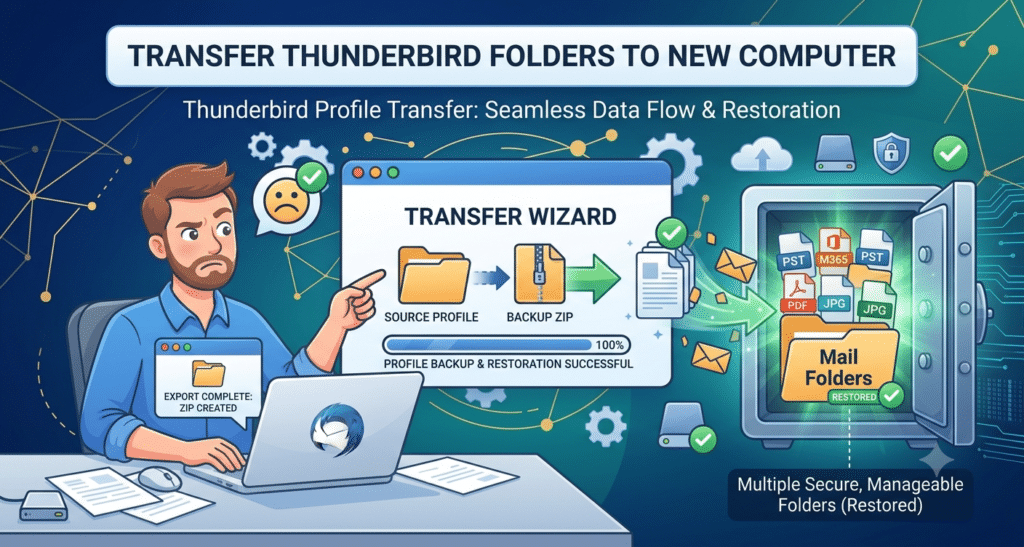

Summary: In this write-up, we will discuss different manual ways to transfer Thunderbird folders to new computer safely. If you are here for this, then it will definitely help you resolve your Thunderbird issues. Sometimes, users find it difficult to move their folders to another PC. They tend to take this step because their Thunderbird application starts to create problems, platform glitches or due to wrong configuration setup.
Thunderbird is used by everyone and is a popular email client. It allows its users to move emails to different folders. When the change of system happens, a question arises: how to transfer or migrate Thunderbird folders to new computer without any changes?
In addition to that, if any users who want to migrate their data from any other email platform, then try this guide on how to import google takeout to Thunderbird?
Why Transfer Thunderbird Folders to a New Computer?
Certain are the key reasons for transferring Thunderbird folders:
- Speed up the installation process and to have a more reliable system.
- A complete backup of emails on another machine.
- Save email data during the reinstallation or upgrade of the OS version.
- By this, you can increase the accessibility of your Thunderbird work data into different systems.
If any Thunderbird folders are saved, then all emails, contacts, and account settings will be kept intact and usable.
Transfer Thunderbird Folders to New Computer – Manual Solution
In this particular section, you will see one method to move your folders. To create no confusion we have divided this method into three parts. Follow these steps in order wise manner to have a successful transfer process.
Method 1. Transfer Using Thunderbird Profile Folder
Mozilla Thunderbird creates user data, i.e., emails, settings, folders inside Profile Folder. Copying this folder to the new machine is best.
Step 1. Find Out where the Thunderbird Profile Is Located on Old Computer
- Launch Thunderbird.
- Click on this Menu > Help > More Troubleshooting Information.
- Below application basics, you need to click on Open Folder next to Profile Folder.
- Now, just close Thunderbird.
- Copy the whole profile folder to USB or any external storage.
Step 2. Transfer to New Computer
- Firstly, install the Thunderbird on the new computer.
- Browse to the Thunderbird profile path:
- Windows: C:\Users\<username>\AppData\Roaming\Thunderbird\Profiles\
- Now, delete the profile folder which was newly created or move this folder to some other location as backup.
- At this last step, just paste the profile folder which you have copied from the previous used system.
Step 3. Editing the profiles.ini
- Go to this following path: C:\Users\<username>\AppData\Roaming\Thunderbird\.
- Open this profiles.ini file using Notepad.
- Rewrite the Path= entry with your profile folder name which you copied earlier in a way to transfer that particular folder.
- Set IsRelative=1 or 0 depending on your choice of full path.
- After this, save and close your profiles.ini file.
- Open Thunderbird and you will see folders, settings, and emails just as before.
Transfer Thunderbird Folders to New Computer – Professional Way
If you’re still not able to move your Thunderbird folder to a new system using the above mentioned steps. Now, you must test the automated software, so that it can import MBOX to Thunderbird. Using this tool, you can quickly move your Thunderbird folders to another PC. This ensures easy email migration across different systems and you can also transfer your entire profile section into a new environment very comfortably.
Verify these Points for Smooth Transfer of Thunderbird Folder
To prevent data loss, before you begin the migration process be sure to take a few precautionary steps:
- Close Thunderbird entirely before copying any files.
- Backup of the full Thunderbird profile folder.
- Install the same Thunderbird version on the two systems
- Inspect the storage space available on the new PC.
- Temporarily disable antivirus for profile copying.
End Note
Moving existing folders into a new PC environment is not much of a task. Whether going with the profile folder method or with our professional method, you will be experiencing smooth email migration during the entire process. As the emails will stay within those folders just like they were before. This is a common problem which can happen with anyone. Especially someone who deals with Thunderbird files regularly. So, go with the right method which suits better for your Thunderbird folders.