
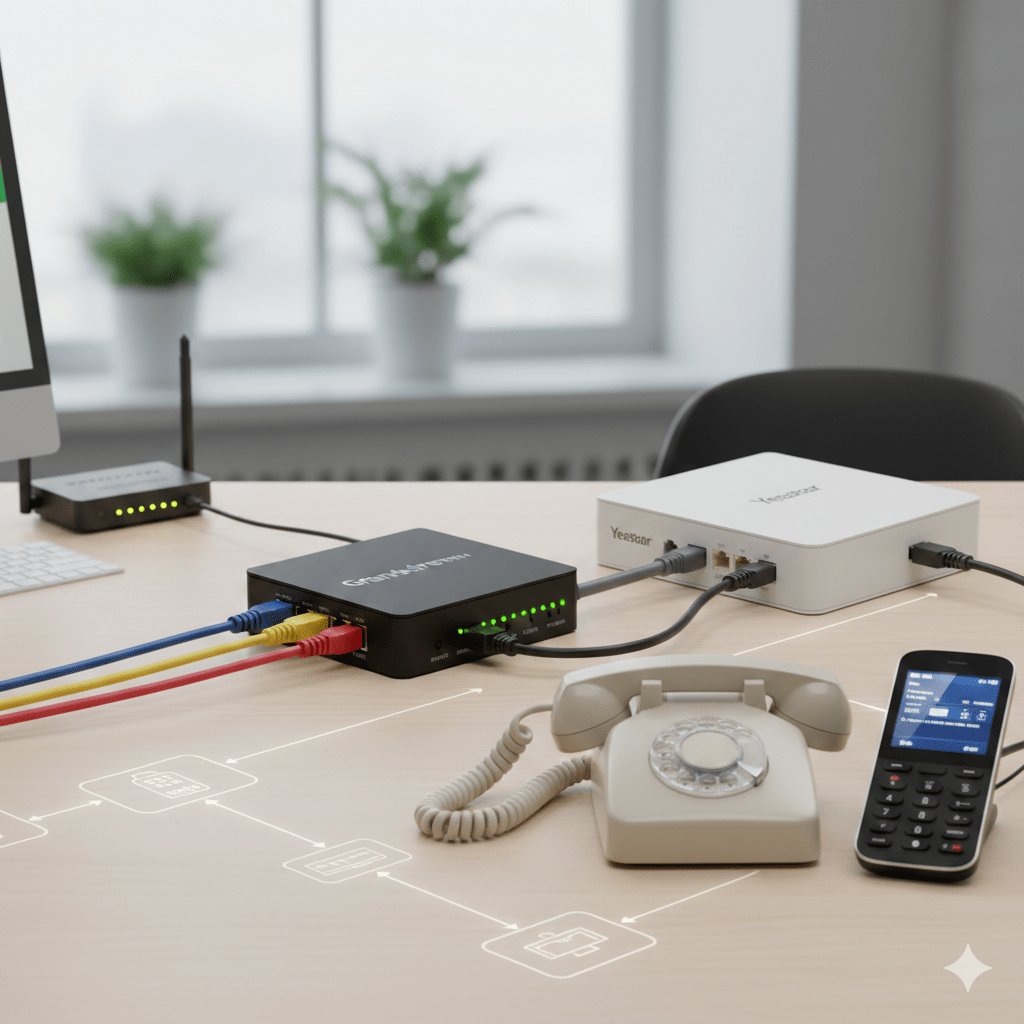

Upgrading to VoIP doesn’t mean throwing away your old analog phones.
Many offices still use reliable desk phones, fax machines, or hotel room phones that work perfectly fine. The challenge? Your new IP PBX system speaks digital — and your analog devices don’t.
That’s where an FXS gateway becomes the bridge. In this guide, you’ll learn exactly how to connect analog phones to your IP PBX with an FXS gateway, step by step — without complicated jargon.
What Is an FXS Gateway?
An FXS (Foreign Exchange Subscriber) gateway is a device that allows analog phones to connect to a VoIP or IP PBX system.
It provides:
Dial tone to analog phones
Ring voltage
Voice signal conversion (Analog ↔ Digital SIP)
In simple words, it converts your old phone into a VoIP-compatible device.
FXS vs FXO — Quick Difference
| Feature | FXS | FXO |
|---|---|---|
| Connects to | Analog phones | PSTN line |
| Provides dial tone | Yes | No |
| Used for | Connecting phones to IP PBX | Connecting IP PBX to telecom line |
If you want to connect an analog phone to IP PBX, you need an FXS gateway, not FXO.
Why Use an FXS Gateway Instead of Replacing Phones?
Switching everything to IP phones can be expensive. An FXS VoIP gateway helps you:
Save money on hardware upgrades
Keep existing analog desk phones
Extend life of legacy systems
Enable smooth migration to VoIP
Support fax machines or hotel phones
For small businesses, hospitals, and hotels, this is often the smartest solution.
What You Need Before Setup
Before connecting your analog phone to your IP PBX, make sure you have:
IP PBX system (on-premise or cloud-based)
FXS gateway device
Ethernet cable
Analog phone
SIP account credentials (Username, Password, SIP server)
Access to your local network
Once you have these ready, the setup becomes simple.
Step-by-Step Guide: Connect Analog Phones to IP PBX with FXS Gateway
Step 1: Connect the Hardware
Plug the analog phone into the FXS port (RJ-11).
Connect the gateway to your network using an Ethernet cable.
Power on the FXS gateway.
Once powered, the device will obtain an IP address from your router.
Step 2: Access the Gateway Web Interface
To configure the FXS gateway:
Find its IP address (via router or device display).
Enter that IP address in your web browser.
Login using admin credentials.
Now you’re inside the configuration panel.
Step 3: Configure SIP Settings
This is the most important step.
Inside the gateway:
Enter SIP server/IP PBX address
Add SIP username
Enter authentication ID
Enter SIP password
Set SIP port (usually 5060)
Save settings.
If everything is correct, the device will register with your IP PBX.
Step 4: Register with IP PBX
Now log in to your IP PBX system.
Create an extension (if not already created).
Assign the extension to the SIP credentials you used.
Check registration status.
If successfully registered, your FXS port will show “Online” or “Registered.”
Step 5: Test Call Functionality
Pick up your analog phone.
You should hear a dial tone.
Try:
Internal extension call
Outbound call
Inbound call
If all works — congratulations 🎉 your analog phone is now running on VoIP.
Common Configuration Mistakes to Avoid
Even small mistakes can cause registration failure.
Watch out for:
Wrong SIP password
Incorrect SIP server address
Firewall blocking SIP ports
NAT issues
Mismatch codec settings
FXS Gateway vs Replacing with IP Phones
| Feature | FXS Gateway | IP Phone Replacement |
|---|---|---|
| Initial Cost | Lower | Higher |
| Setup Complexity | Moderate | Easy |
| Keep Analog Phones | Yes | No |
| Long-Term Scalability | Limited by ports | More scalable |
| Best For | Budget upgrades | Full VoIP migration |
If you\’re gradually upgrading, FXS gateways are ideal.
If you\’re building a modern office from scratch, IP phones may be better.
Best Use Cases for FXS Gateways
FXS gateways are widely used in:
Hotels (room phones)
Hospitals (bedside phones)
Small businesses
Educational institutions
Fax machine integration
They allow legacy device integration without system replacement.
Frequently Asked Questions
1. Can I connect multiple analog phones to one FXS gateway?
Yes. Multi-port FXS gateways allow 2, 4, 8, or more analog devices depending on model.
2. Does call quality decrease with an FXS gateway?
No, if properly configured with correct codecs and network stability.
3. Do I need a special IP PBX?
No. Most SIP-based IP PBX systems support FXS gateway integration.
4. Can I use it with cloud PBX?
Yes, as long as the provider allows SIP device registration.
By using an FXS gateway, you can easily connect analog phones to your IP PBX without replacing your entire system. It’s cost-effective, reliable, and perfect for businesses transitioning to VoIP.
If you’re planning a VoIP upgrade, consider whether a VoIP gateway solution fits your infrastructure before investing in new hardware.
for more click here