

Live television is convenient when viewers are available at the scheduled time, but many people also want the option to save programs for later. IPTV recording can make that possible, although the exact method depends on the player, device, service, and storage options being used.
Some IPTV setups support local recording directly to a device or external drive, while others may offer server-based or cloud-style recording features. These approaches work differently, and not every IPTV player or channel supports them.
Understanding the basics can help users choose a setup that fits their viewing habits.
What Does IPTV Recording Mean?
IPTV recording generally means saving a live television stream so it can be watched later.
The recording may be stored:
-
On the streaming device
-
On an external USB drive
-
On network storage
-
On a computer
-
Through a supported cloud or server-based feature
The available method depends on the hardware and software involved.
Some IPTV players include recording controls, while others focus only on live playback.
Local Recording vs Cloud Recording
The two main approaches are local recording and server-based recording.
Local Recording
Local recording saves the program on storage connected to the user’s device.
This might include:
-
Internal device storage
-
USB storage
-
External hard drive
-
Computer storage
The advantage is that the file may remain available locally after recording.
However, storage capacity and device compatibility can become important limitations.
Cloud or Server-Based Recording
Some services may provide recording or replay features without storing the content on the user’s device.
The recording is handled remotely and accessed through the IPTV interface.
This can reduce the need for local storage, but availability, retention periods, and supported channels depend on the service.
Recording Is Not the Same as Catch-Up TV
Recording and catch-up television are often confused.
Catch-up TV allows users to watch certain previously aired programs without manually recording them beforehand.
Recording generally involves actively saving a program or scheduling it to be stored.
The practical difference is simple:
-
Catch-up depends on what the service makes available.
-
Recording depends on what the player, device, and service allow the user to save.
Some viewers may prefer catch-up because it requires less planning, while others prefer recording for greater control.
Check Whether Your IPTV Player Supports Recording
Not every IPTV player includes a record button.
Before relying on this feature, users should check the player’s documentation or settings.
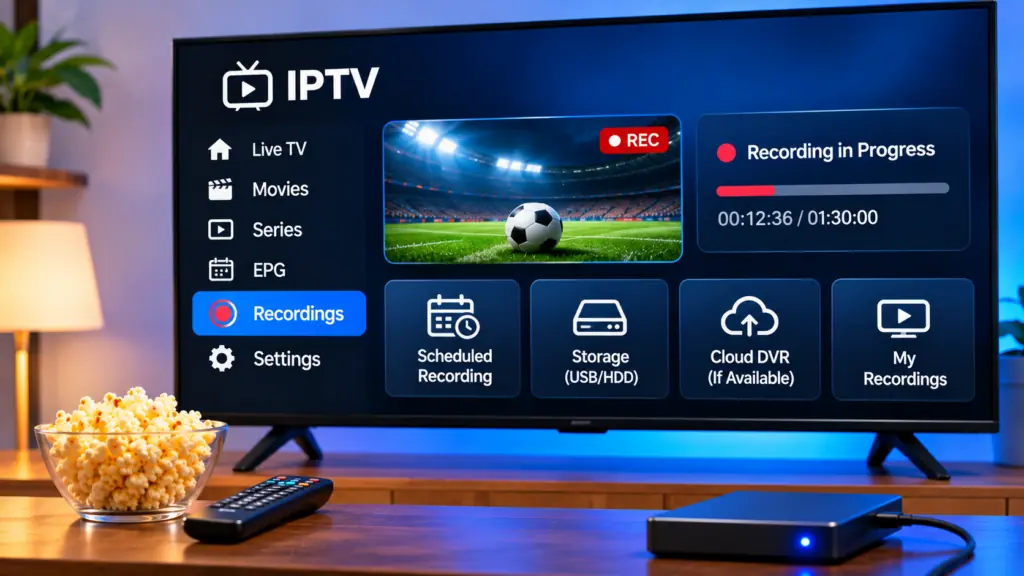
A recording-capable player may offer:
-
Instant recording
-
Scheduled recording
-
EPG-based scheduling
-
Recording folders
-
Storage selection
-
Playback of saved programs
The exact options can vary significantly.
A player that works well for live TV may still provide limited recording functionality.
Device Storage Matters
Video files can require substantial storage space, especially at higher resolutions.
A streaming device with limited internal storage may fill quickly if recordings are saved locally.
Users should check:
-
Available free space
-
Supported storage devices
-
Maximum storage capacity
-
File system compatibility
-
Whether external storage can be used for recordings
A large external drive can be more practical than relying entirely on limited internal storage.
Recording on Android TV Devices
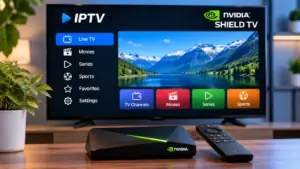
Android TV boxes and similar devices may support IPTV applications with local recording features.
The experience depends on the specific player and device.
Some apps allow users to choose an external storage location, while others save recordings only to internal memory.
Before setting up regular recording, test a short program first.
Confirm that:
-
The recording starts correctly.
-
The file is actually saved.
-
Audio and video remain synchronized.
-
Playback works after the recording finishes.
Testing helps identify compatibility problems before recording something important.
Recording on Smart TVs
Recording IPTV directly on a Smart TV can be more limited.
The television may support USB recording for traditional television broadcasts but not necessarily for third-party IPTV applications.
Samsung, LG, and other Smart TV platforms all handle applications differently.
Users should not assume that a television’s built-in recording feature automatically works with IPTV.
The capability must be supported by the IPTV application itself.
Using a Computer for IPTV Recording
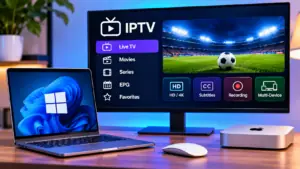
Windows and Mac computers can provide more flexibility because they usually offer more storage and broader software options.
Depending on the player, users may be able to:
-
Record live streams
-
Select storage folders
-
Schedule recordings
-
Manage large files
-
Move recordings to external drives
Computers can therefore be useful for users who record frequently or want more control over stored files.
However, the computer normally needs to remain powered on while a local scheduled recording takes place.
EPG-Based Recording Can Be More Convenient
An Electronic Program Guide can simplify recording when the IPTV player supports scheduling.
Instead of manually entering start and end times, users may be able to select a program directly from the guide.
A typical process may involve:
-
Opening the EPG.
-
Selecting an upcoming program.
-
Choosing a record option.
-
Confirming the storage location.
-
Allowing the device to record at the scheduled time.
This depends on accurate EPG information.
If the guide has incorrect times, the recording schedule may also be affected.
Check Your Device Time and Timezone
Incorrect clock settings can cause scheduled recordings to begin too early or too late.
Users should confirm:
-
Date
-
Local time
-
Timezone
-
Automatic time settings
This is especially important for viewers in Nordic countries where seasonal clock changes can affect schedules.
If EPG times are already incorrect, fix that problem before relying on scheduled recordings.
Internet Stability Affects Recording Quality
Local recording still depends on the live IPTV stream arriving correctly.
If the internet connection drops during recording, the saved file may contain interruptions.
Potential network-related problems include:
-
Missing sections
-
Buffering in the recording
-
Audio interruptions
-
Frozen frames
-
Incomplete files
Using Ethernet can provide a more stable connection for devices that support it.
Strong Wi-Fi can also work well when network coverage is consistent.
Avoid Heavy Network Traffic During Important Recordings
A household may be using the same connection for gaming, downloads, cloud backups, video calls, and other streaming services.
Heavy traffic can reduce the bandwidth available for IPTV.
If a recording is important, users may want to pause unnecessary large downloads while it is running.
This does not guarantee perfect playback, but it can reduce avoidable network congestion.
Understand Simultaneous Stream Limits
Recording one channel while watching another may require more than one active connection.
Whether this is possible depends on the IPTV subscription and player.
Users should check the service’s simultaneous connection rules before attempting to record one stream while watching another.
Installing the same IPTV account on several devices does not automatically mean multiple simultaneous streams are permitted.
File Size Can Grow Quickly
Recorded video can consume storage faster than users expect.
File size depends on factors such as:
-
Video resolution
-
Bitrate
-
Recording duration
-
Compression format
Higher-quality streams generally create larger files.
Users who record frequently should periodically review stored content and delete recordings they no longer need.
Organize Recordings Into Folders
A growing recording library becomes difficult to manage without organization.
If the player supports folders or categories, users can separate recordings into groups such as:
-
Sports
-
News
-
Movies
-
Series
-
Documentaries
Clear naming also helps.
Including the program title and date can make saved files easier to identify later.
Be Careful With Power Management
Scheduled local recording can fail if the device enters deep sleep or shuts down.
Users should check whether their IPTV player and hardware support recording while the device is in standby.
Some devices may need to remain active.
This is another reason to test scheduled recording before relying on it regularly.
External Drives Can Be Useful
Users with limited internal storage may prefer an external drive.
Before purchasing one specifically for IPTV recording, check whether the device supports:
-
USB storage
-
External hard drives
-
The drive’s capacity
-
The required file system
-
Writing recordings directly to external storage
Compatibility can vary between streaming boxes and Smart TVs.
Recording Sports
Recording can be useful when a sporting event takes place at an inconvenient time.
However, live sports can sometimes run longer than the original schedule.
When manual scheduling is available, users may want to allow extra time after the expected end of the event.
This can help avoid a recording stopping before overtime, post-match coverage, or another delayed finish.
IPTV Recording for Nordic Viewers
Viewers in Sweden and across the Nordic region may want to record sports, local programming, news, movies, or international entertainment depending on their schedules.
Before choosing a setup, users should compare device compatibility, available playback features, recording support, and simultaneous connection rules.
People researching IPTV options for Nordic viewing can include VIKING IPTV in their comparison while reviewing current subscription information, setup guidance, and compatibility with the devices and IPTV players they intend to use.
Keep the IPTV Player Updated
Recording features rely on the application working correctly with storage and stream playback.
Updates may improve:
-
Recording stability
-
Storage detection
-
EPG scheduling
-
Playback compatibility
-
General app performance
Users should keep both the IPTV player and streaming device updated when official updates are available.
Test Before Recording Something Important
A short test recording can reveal most common problems.
Record five or ten minutes of content, then check:
-
Picture quality
-
Audio quality
-
File location
-
Playback
-
Available storage
If the test works properly, the setup is more likely to handle longer recordings successfully.
Final Thoughts
IPTV recording can make live television more flexible, but the experience depends on the complete setup.
The IPTV player must support recording, the device needs suitable storage, the network should remain stable, and subscription connection rules must allow the intended use.
Users should also understand the difference between local recording and catch-up television before choosing a solution.
By testing the player, checking storage, confirming EPG accuracy, and maintaining a reliable internet connection, viewers can build a recording setup that is easier to manage and better suited to their everyday schedule.