
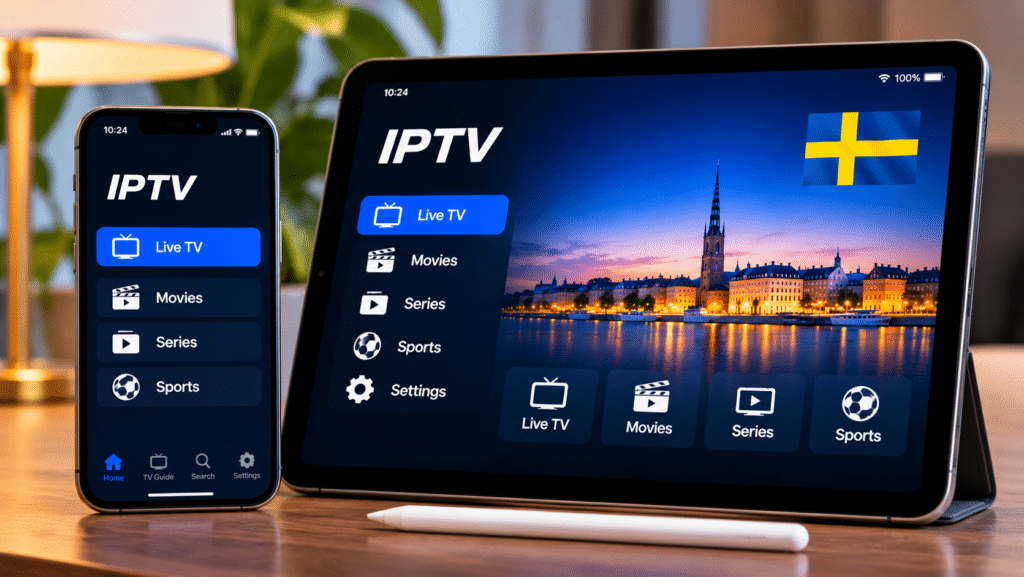

Watching IPTV on an iPhone or iPad can be a convenient option for viewers who want television access away from the main living-room screen. Mobile devices make it possible to watch live television, sports, movies, and series at home, in another room, or while travelling when a suitable internet connection is available.
For users in Sweden, the quality of the experience depends on the IPTV application, account format, network connection, device settings, and available content.
This guide explains the main things to consider when setting up IPTV on an iPhone or iPad.
How IPTV Works on iPhone and iPad
IPTV delivers television content through an internet connection.
On an iPhone or iPad, users normally install a compatible IPTV player from the App Store and then connect it to the account information supplied by their IPTV service.
Depending on the application, supported login methods may include:
-
M3U playlists
-
Xtream-style credentials
-
Portal-based access
-
Application-specific playlist systems
The IPTV player provides the interface used to browse channels and other available content.
Choose a Compatible IPTV Player
Not every IPTV application offers the same features.
Before installing a player, check whether it supports the login format provided by the IPTV service.
Useful features can include:
-
Live TV categories
-
Favorites
-
Electronic Program Guide
-
Search
-
Movies and series sections
-
Subtitle selection
-
Multiple audio tracks
-
AirPlay support
-
Parental controls
A simple application with reliable navigation may be more useful than one with many advanced settings that are rarely used.
Using an M3U Playlist
Some IPTV apps allow users to enter an M3U playlist URL.
The application reads the playlist and organizes the available content.
Because an M3U URL may include account credentials, users should treat it as private.
Avoid sharing complete playlist links through public forums, screenshots, or social media.
If the link is long, copying and pasting it on an iPhone or iPad is usually easier than entering it manually on a television.
Using Xtream-Style Login Details
Some applications support separate login credentials.
This commonly requires:
-
Server URL
-
Username
-
Password
Once the information is entered correctly, the player may organize available live television, movies, series, and EPG data automatically.
The exact layout depends on the application and IPTV service.
Why Mobile IPTV Can Be Convenient
An iPhone or iPad can be useful when the main television is unavailable.
Common situations include:
-
Watching in another room
-
Following live sports away from the TV
-
Using an iPad as a portable screen
-
Watching while travelling
-
Checking a stream before opening it on another device
An iPad can be particularly comfortable because its larger display offers more screen space than a smartphone while remaining portable.
Wi-Fi Is Usually the Best Option at Home
Video streaming can use a substantial amount of data, so home Wi-Fi is often preferable to mobile data for longer viewing sessions.
A stable Wi-Fi connection can improve:
-
Picture consistency
-
Channel-loading time
-
Playback stability
-
EPG updates
If IPTV works well near the router but buffers in another room, Wi-Fi coverage may be the issue.
Check Wi-Fi Signal Strength
The iPhone or iPad may move around the home throughout the day.
This means network quality can change depending on location.
Walls, floors, distance, and nearby wireless networks can reduce signal strength.
If playback begins buffering:
-
Move closer to the router
-
Test another streaming application
-
Restart Wi-Fi on the device
-
Check whether other household devices are heavily using the network
These basic checks can help identify whether the issue is local.
IPTV Over Mobile Data
One advantage of an iPhone is the ability to stream when Wi-Fi is unavailable.
However, video can consume significant mobile data.
Before watching for long periods, check:
-
Mobile data allowance
-
Network coverage
-
Roaming conditions
-
Video-quality settings
Using lower video quality can reduce data consumption when supported by the player or stream.
Be Careful With Roaming
Swedish users travelling outside their normal mobile coverage area should review their operator’s roaming conditions.
Streaming television for extended periods can use much more data than ordinary browsing or messaging.
Unexpected roaming charges or data limits can become a problem if IPTV is used heavily abroad.
Wi-Fi may be preferable when a reliable and trusted network is available.
Use Favorites for Faster Navigation
Large IPTV channel lists can be inconvenient on a smaller screen.
Favorites allow users to create a shorter collection containing the channels they watch most often.
A practical favorites list might include:
-
Swedish television
-
News
-
Sports
-
Entertainment
-
Family channels
-
Frequently watched international channels
Keeping the list focused makes navigation quicker.
Use Search Instead of Scrolling
Touchscreen devices are well suited to search.
Rather than scrolling through a long channel list, users can type the name of a channel, movie, or series when the IPTV player supports search.
This is especially useful for large content libraries.
The exact search capability depends on the application.
Electronic Program Guide on Mobile
An Electronic Program Guide can help viewers see what is currently playing and what is coming next.
Depending on the player, an EPG may display:
-
Program names
-
Start and end times
-
Upcoming shows
-
Channel schedules
-
Program descriptions
On an iPad, the larger screen can make grid-style guides especially comfortable to browse.
Check Date and Time Settings
If the program guide appears at the wrong time, check the iPhone or iPad date and timezone.
Incorrect device time can cause EPG information to appear shifted.
For users in Sweden, automatic date and time settings will normally keep the device synchronized with the appropriate local timezone.
Only adjust application-specific EPG offsets if the system time is already correct.
Using IPTV With AirPlay
Some IPTV applications support AirPlay.
This allows compatible video to be sent from an iPhone or iPad to an Apple TV or AirPlay-enabled television.
AirPlay can be useful when viewers want to start browsing content on a mobile device and then continue watching on a larger screen.
However, support varies between IPTV applications and stream formats.
A player should be tested before relying on AirPlay regularly.
AirPlay vs Screen Mirroring
AirPlay and screen mirroring are not always the same experience.
Direct AirPlay
The application sends supported media to the receiving device.
This can provide smoother playback when the app supports it properly.
Screen Mirroring
The television displays a copy of the entire iPhone or iPad screen.
Notifications and other screen activity may also appear.
Direct playback through a compatible app is generally more convenient when available.
Subtitles on iPhone and iPad
Mobile IPTV players may provide subtitle controls during playback.
Depending on the content, users may find:
-
Swedish subtitles
-
English subtitles
-
Other Nordic languages
-
Original-language subtitles
The availability of subtitles depends on the stream itself.
If one program lacks Swedish subtitles, test another before assuming the IPTV player has a problem.
Adjust Subtitle Size
Text that is easy to read on a television may not be comfortable on an iPhone.
Some IPTV players allow subtitle size and appearance to be adjusted.
Useful options can include:
-
Font size
-
Position
-
Background
-
Text outline
-
Synchronization
These controls can make international movies and series easier to follow on smaller screens.
Alternative Audio Tracks
Some IPTV streams contain more than one audio track.
A compatible player may allow users to switch between:
-
Swedish audio
-
English audio
-
Original-language audio
-
Alternative commentary
-
Other available languages
This can be especially useful for sports or multilingual content.
Use Picture-in-Picture When Supported
Some iPhone and iPad applications support Picture-in-Picture.
This allows compatible video to continue playing in a smaller window while another application is open.
It can be useful when users need to check a message, browse the web, or perform another simple task without completely leaving the stream.
Availability depends on the player, video source, and iOS or iPadOS support.
Keep the Device Updated
iOS and iPadOS updates can affect application compatibility.
Users should keep their devices reasonably current and install stable IPTV app updates from trusted sources.
Updates may improve:
-
Playback compatibility
-
Security
-
Interface stability
-
Casting
-
Subtitle support
After a major update, test the IPTV application before relying on it for an important live event.
Avoid Unknown IPTV Applications
Applications should ideally come from the official App Store or another trusted source supported by the device.
Avoid entering subscription credentials into unknown applications.
Before choosing a player, consider:
-
Developer information
-
Recent updates
-
Privacy information
-
App permissions
-
Supported login methods
A reputable application is especially important because it may handle account credentials.
Protect IPTV Login Details
M3U URLs, usernames, and passwords can provide access to an IPTV account.
Do not share them publicly.
If storing credentials on the device, use secure methods rather than leaving them in an unprotected note that anyone with access to the phone can open.
Account security is particularly important on shared tablets.
Family Use on an iPad
An iPad may be shared by several household members.
Parents may want to use:
-
App restrictions
-
Screen Time
-
Device passcodes
-
IPTV parental controls
-
Restricted categories
These features can help keep account settings and inappropriate content less accessible to younger users.
IPTV for Swedish Viewers
Mobile viewing can complement a Smart TV or streaming-box setup rather than replacing it.
People researching IPTV subscriptions, compatible devices, streaming information, and viewing options for Sweden can also explore Rapid IPTV Sweden while comparing services suited to different household requirements.
The best setup depends on where and how IPTV will actually be watched.
Live Sports on iPhone and iPad
Mobile devices can be useful for sports when the television is unavailable.
Before an important event:
-
Check the internet connection
-
Charge the device
-
Test the intended stream
-
Close unnecessary apps
-
Check mobile data if Wi-Fi is unavailable
-
Confirm the program time
A short test before kickoff can prevent avoidable interruptions.
Movies and Series on an iPad
The larger iPad display can be particularly suitable for films and series.
A good IPTV player should make it easy to:
-
Browse genres
-
Search titles
-
Navigate seasons
-
Select episodes
-
Change subtitles
-
Choose audio tracks
Viewers who mainly use IPTV for on-demand content should prioritize these features when choosing an app.
Battery Usage During Streaming
Video playback can consume battery power quickly.
Long viewing sessions may also increase device temperature.
For extended IPTV use:
-
Start with a charged device
-
Reduce unnecessary screen brightness
-
Close demanding background applications
-
Keep the device ventilated
-
Use a charger when appropriate
If the device becomes unusually hot, allowing it to cool can help protect performance.
What to Do if IPTV Buffers
If playback becomes unstable, start with basic troubleshooting.
Test Another Channel
If only one stream has a problem, the issue may be content-specific.
Check Another App
If every online video service is slow, the network may be responsible.
Restart the IPTV App
Closing and reopening the player can resolve temporary software problems.
Change Networks
Switching between Wi-Fi and mobile data can help identify whether the connection is responsible.
Restart the Device
A restart can clear temporary memory or networking issues.
Do Not Change Too Many Settings at Once
When troubleshooting, adjust one factor at a time.
Changing the player, DNS settings, video decoder, network, and account configuration simultaneously makes it difficult to identify what actually solved the issue.
Start with simple checks before moving to advanced settings.
Final Thoughts
iPhone and iPad can provide flexible IPTV viewing for Swedish users who want access to television beyond the main living-room screen.
The most important factors are a compatible IPTV player, secure account configuration, stable internet connection, sensible mobile-data use, and useful features such as EPG, subtitles, favorites, and AirPlay.
A properly configured mobile setup can make it easier to watch live television, sports, movies, and series around the home or while travelling, without adding another dedicated streaming device.