
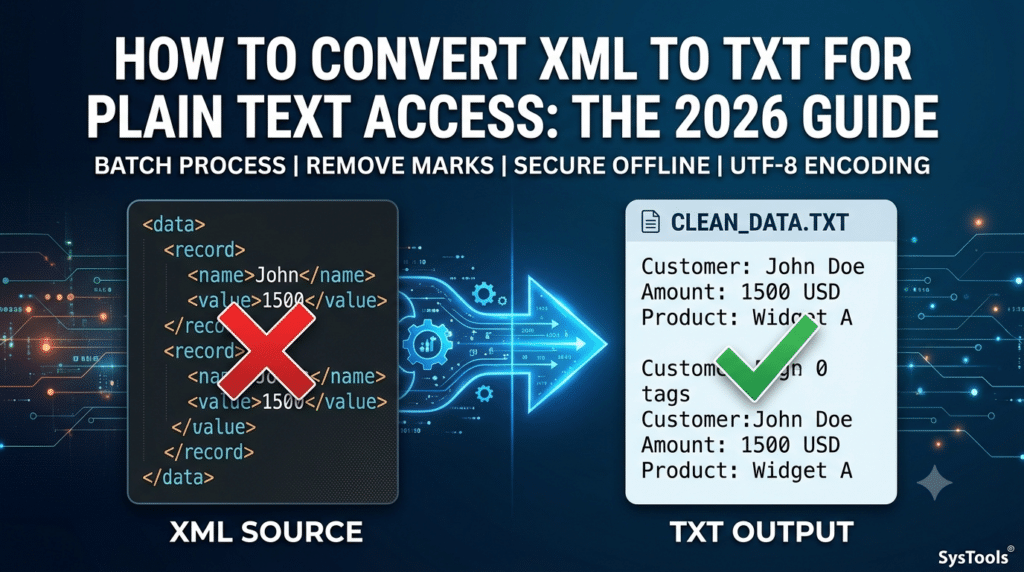

To convert XML to TXT for Plain Text Access, you can use a dedicated desktop conversion utility for bulk files, a basic text editor like Notepad for single small documents, or automated command-line scripts. While renaming a file extension from .xml to .txt keeps the raw markup intact, true conversion strips away nested syntax tags, schemas, and attributes, transforming complex hierarchical data into clean, universally readable UTF-8 plain text. For secure, zero-data-loss batch processing of large or malformed datasets, an offline desktop tool provides the fastest and most accurate results.
Why Organizations Need to Convert XML to TXT for Plain Text Access
Extensible Markup Language (XML) is the backbone of enterprise data exchange, powering everything from financial ledgers and healthcare HL7 records to website sitemaps and configuration files. However, XML is designed for machines, not human eyes. When analysts, compliance auditors, or everyday business users need to review records quickly, raw markup creates severe friction.
When you Convert XML to TXT for Plain Text Access, you unlock several immediate operational advantages:
- Elimination of Visual Clutter: Stripping out opening and closing tags leaves behind pure, human-readable text that anyone can scan without technical training.
- Universal Device and Legacy Compatibility: Plain text files require zero specialized parsers. They open instantaneously on every operating system, legacy mainframe, mobile device, and lightweight terminal.
- Significant File Size Reduction: Verbose XML schemas often inflate file sizes by 60% to 80% due to repetitive tag names. Plain text dramatically reduces storage overhead and speeds up file transfers.
- Seamless Downstream Ingestion: Clean .txt files serve as ideal raw inputs for legacy ERP imports, quick keyword indexing, and modern Retrieval-Augmented Generation (RAG) pipelines for enterprise AI models.
Hidden Pitfalls of XML to Text Conversion
Most online tutorials treat XML conversion as a trivial “Save As” operation. In real-world enterprise environments across the United States, naive conversion methods frequently corrupt critical business data. Before choosing a workflow, account for four technical nuances that generic blogs gloss over:
- The “Extension Rename” Fallacy: Simply changing invoice.xml to invoice.txt in Windows File Explorer or macOS Finder does not extract the data. It merely forces a text editor to display raw angle brackets, namespaces, and metadata headers.
- Loss of Parent-Child Context: XML relies on indentation and nesting to show which values belong together. When poorly built scripts strip tags indiscriminately, distinct database records mash together into an unreadable wall of text.
- Character Encoding Corruption: XML files frequently declare specific encodings like ISO-8859-1 or UTF-16 in their prolog. Converting them without normalizing to standard UTF-8 turns currency symbols, accents, and special characters into garbled symbols.
- Data Privacy Risks of Free Web Converters: Uploading sensitive financial, legal, or HIPAA-regulated XML exports to browser-based converters exposes proprietary data to third-party servers, violating strict corporate compliance mandates.
Comparison of Methods to Convert XML to TXT for Plain Text Access
|
Conversion Method |
Best For |
Bulk Processing |
Data Privacy |
Preserves Hierarchy |
Handles Malformed XML |
|
Dedicated Desktop Software |
Enterprise datasets, sensitive files, batch jobs |
Unlimited files/folders |
100% Offline & Local |
Yes |
Yes (Auto-repair) |
|
Text Editors (Notepad / TextEdit) |
Quick viewing of 1–2 tiny files |
No (Manual one-by-one) |
High (Local) |
No (Leaves tags) |
No |
|
Online Browser Converters |
Non-sensitive, small public XML files |
Limited (File size caps) |
Low (Cloud upload) |
Varies |
No |
|
Python / XSLT Scripts |
Software engineers building custom pipelines |
Yes (Requires coding) |
High (Local) |
Custom logic needed |
Fails on syntax errors |
How to Convert XML to TXT for Plain Text Access Using Professional Software
When dealing with nested schemas, multi-megabyte exports, or hundreds of individual documents, manual cleanup is impossible. Using the SysTools XML Converter Tool allows you to Convert XML to TXT for Plain Text Access completely offline while keeping parent-child data relationships organized and intact.
Unlike browser utilities that choke on large payloads or leak confidential records, this standalone desktop application runs natively on both Windows and macOS. It automatically detects broken or missing tags in malformed XML documents and processes entire directory trees in a single batch.
Step-by-Step Guide to Batch Conversion
- Launch the Application: Download, install, and open the XML conversion utility on your Windows or Mac workstation.
- Load Your XML Source Data: Click Add File(s) to select individual .xml documents, or choose Add Folder(s) to ingest an entire directory containing nested subfolders.
- Preview Hierarchy and Attributes: Inspect the loaded file structure inside the built-in preview pane to verify that all records, attributes, and nested elements are accurately parsed before exporting.
- Select TXT as the Target Format: Navigate to the Export Options panel and choose TXT from the list of supported document and database formats.
- Configure Destination Path: Click Change or Browse to designate a local folder or network drive where the generated plain text files will be saved.
- Execute and Verify: Click Export to Convert XML to TXT for Plain Text Access instantaneously. Once complete, open the summary export report to confirm record counts and conversion status for every processed file.
Alternative Manual Methods
1. Using Microsoft Excel to Strip Tags
Microsoft Excel includes a built-in XML parser that maps repetitive tags into clean columns and rows:
- Open Excel and navigate to File > Open, then browse to your .xml file.
- When prompted by the Open XML dialog box, select As an XML table and click OK.
- Once Excel populates the grid without markup tags, go to File > Save As and select Text (Tab delimited) (*.txt).
Limitation: Excel struggles with deeply nested, multi-level XML hierarchies and fails to open files exceeding 1,048,576 rows or containing syntax errors.
2. Using a Python Script for Developers
Engineers comfortable with the command line can use Python’s native xml.etree.ElementTree library to extract text nodes recursively:
Python
import xml.etree.ElementTree as ET
tree = ET.parse(‘input.xml’)
root = tree.getroot()
with open(‘output.txt’, ‘w’, encoding=’utf-8′) as f:
for elem in root.iter():
if elem.text and elem.text.strip():
f.write(f”{elem.tag}: {elem.text.strip()}\n”)
Limitation: Any unclosed tag, invalid character entity, or malformed schema causes the script to throw a ParseError and abort immediately.
Best Practices for Clean Plain Text Extraction
To guarantee accuracy every time you Convert XML to TXT for Plain Text Access, standardize on three operational habits:
- Validate Schema Integrity First: Check whether your source files come from automated server dumps that occasionally drop closing tags, and use a parser capable of auto-correcting malformed syntax.
- Preserve Delimiters for Tabular Data: When exporting structured records to plain text, retain clear line breaks or tab delimiters between parent nodes so downstream readers can distinguish where one record ends and the next begins.
- Enforce UTF-8 Encoding: Standardize all plain text outputs to UTF-8 without BOM (Byte Order Mark) to ensure maximum compatibility across modern cloud databases, analytics tools, and text editors.
By pairing structured validation with an offline batch workflow, teams can convert XML to TXT for Plain Text Access quickly, securely, and without losing critical business context.
FAQ
Q1. How do I convert an XML file to plain text without tags?
Answer. To remove markup tags cleanly, avoid simply renaming the file extension. Instead, use a dedicated desktop utility to convert XML to TXT for Plain Text Access, import the file into Microsoft Excel as an XML table before saving as .txt, or run an XSLT/Python parser that extracts only the inner text nodes.
Q2. Can I open an XML file directly in Notepad?
Answer. Yes, Windows Notepad and macOS TextEdit can open any XML file because XML is stored as plain text under the hood. However, opening it directly displays all raw angle brackets, schema definitions, and attributes alongside your actual data, making large files nearly impossible to read.
Q3. How do I batch convert multiple XML files to TXT at once?
Answer. Manual editors and spreadsheet programs only process one document at a time. To Convert XML to TXT for Plain Text Access across hundreds or thousands of files simultaneously, use an offline batch converter that supports folder-level ingestion while preserving your original directory structure.
Q4. Is it safe to use free online XML to TXT converters?
Answer. Free web converters carry substantial security risks. Uploading XML files containing customer PII, financial transactions, or proprietary configurations transfers your data to external servers. For regulated industries in the United States, always convert XML to TXT for Plain Text Access using local, offline software.
Q5. Why does my converted TXT file show weird symbols instead of text?
Answer. Garbled characters appear when there is an encoding mismatch between the original XML header (such as Windows-1252 or UTF-16) and the text viewer reading the output. Ensure your conversion workflow explicitly encodes the final .txt document in universal UTF-8 format.
Conclusion
Choosing the right method to Convert XML to TXT for Plain Text Access depends on your file volume, technical comfort, and data sensitivity. While basic text editors and spreadsheets work for quick, one-off inspections of small non-confidential documents, they fall short when handling deeply nested schemas, broken tags, or strict enterprise compliance standards.
By pairing structured validation, UTF-8 encoding normalization, and a dedicated offline batch workflow, teams can convert XML to TXT for Plain Text Access quickly, securely, and without losing critical parent-child context. Whether you are preparing legacy records for audit review, reducing storage overhead, or feeding clean raw data into modern AI pipelines, stripping away XML markup properly ensures your information remains universally readable and ready for immediate action.