
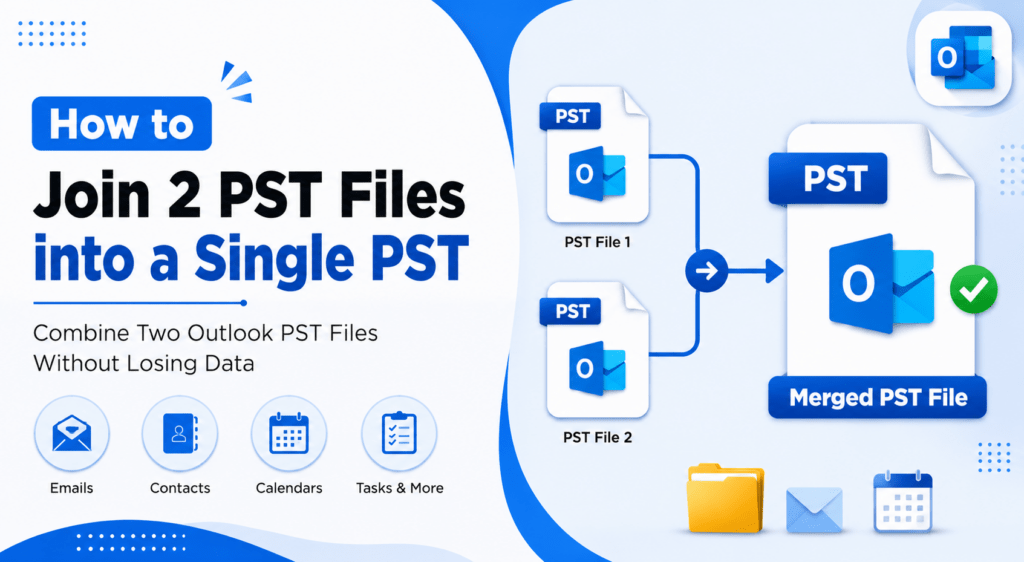

If you have multiple Outlook PST files stored on your computer, managing them individually can be inconvenient. Many users create separate PST files while archiving emails, switching Outlook profiles, migrating to a new PC, or taking backups. As a result, important emails, contacts, calendars, and other mailbox items become scattered across different files.
If you’re looking for a way to join 2 PST files into a single PST, this guide explains both the manual Outlook method and a professional solution to merge PST files safely without losing data.
Why Join Two PST Files?
Merging two PST files helps you:
- Keep all Outlook data in one location.
- Easily search emails from a single mailbox.
- Simplify Outlook backup and migration.
- Reduce the number of Outlook data files.
- Improve mailbox organization.
- Manage archived emails more efficiently.
Things to Do Before Joining PST Files
Before you start, follow these precautions:
- Create a backup of both PST files.
- Close Microsoft Outlook.
- Ensure neither PST file is corrupted.
- Check that enough disk space is available.
- Use the latest version of Outlook for better compatibility.
Method 1: Join Two PST Files Manually in Outlook
Outlook includes an Import/Export Wizard that allows you to import one PST file into another.
Step 1: Open Outlook
Launch Microsoft Outlook and make sure both PST files are accessible.
Step 2: Create a New PST File (Optional)
- Click File > Account Settings > Account Settings.
- Open the Data Files tab.
- Click Add.
- Create a new Outlook PST file.
You can also merge the second PST into an existing one instead of creating a new file.
Step 3: Import the Second PST
- Select File > Open & Export > Import/Export.
- Choose Import from another program or file.
- Select Outlook Data File (.pst).
- Browse and select the second PST file.
- Choose the destination PST.
- Click Finish.
Outlook will copy emails, contacts, calendars, tasks, notes, journals, and other mailbox items into the destination PST.
Limitations of the Manual Method
Although Outlook offers a free solution, it has several drawbacks:
|
Limitation |
Description |
|
Time-consuming |
Import each PST separately. |
|
No batch processing |
Suitable only for a small number of PST files. |
|
Duplicate items |
Duplicate emails and contacts may be created. |
|
Outlook dependency |
Microsoft Outlook must be installed. |
|
Large PST performance |
Importing large PST files may slow Outlook or cause freezing. |
|
Manual effort |
Users must monitor the entire process. |
Method 2: Join Two PST Files Using SysTools PST Merge Tool
If you want a faster, more reliable solution, the SysTools PST Merger Tool lets you combine PST files without the limitations of the manual method.
The software merges Outlook data while maintaining the original folder hierarchy and preserving all mailbox items.
Key Features
- Join two or multiple PST files into one.
- Merge emails, contacts, calendars, tasks, journals, and notes.
- Preserve the original folder structure.
- Merge ANSI and Unicode PST files.
- Combine PST files without duplicate items during the merge.
- Support password-protected PST files.
- Merge archive PST files.
- Compatible with Outlook 2021, 2019, 2016, 2013, 2010, and earlier.
- Works on Windows 11, 10, 8, and 7.
Steps to Join Two PST Files
- Install and launch the SysTools PST Merge Tool.
- Click Add Files and select the two PST files.
- Choose the Merge into Single PST option.
- Select the destination folder.
- Enable duplicate removal if required.
- Click Merge.
- Wait for the process to complete.
A single PST file containing data from both Outlook files will be created.
Best Practices After Joining PST Files
After the merge is complete:
- Verify that all folders are present.
- Check email counts and attachments.
- Confirm contacts and calendar entries are intact.
- Keep the original PST files as a backup until you verify the merged file.
- Regularly back up the new PST to avoid accidental data loss.
Frequently Asked Questions
Can I join two PST files without Outlook?
The manual method requires Microsoft Outlook. However, professional PST merge software can combine PST files without relying on Outlook for the merging process.
Will my attachments be preserved?
Yes. Emails, attachments, contacts, calendars, tasks, notes, and journals remain intact when the merge is performed correctly.
Can I merge password-protected PST files?
Yes. Professional tools such as SysTools PST Merge Tool support password-protected PST files.
Will duplicate emails be created?
The manual method may create duplicate items. Professional tools provide duplicate removal options to prevent this.
Is there a limit on PST file size?
Modern Unicode PST files support much larger file sizes than older ANSI PST files. However, keeping PST files at a manageable size helps maintain Outlook performance.
Conclusion
Joining two PST files into a single PST makes Outlook data easier to manage, search, and back up. While Microsoft Outlook offers a free import method, it can be slow and may create duplicate items, especially when working with large files. A dedicated solution like the SysTools PST Merge Tool provides a faster, safer, and more efficient way to merge PST files while preserving folder hierarchy and mailbox integrity, making it an excellent choice for both individual users and organizations.