
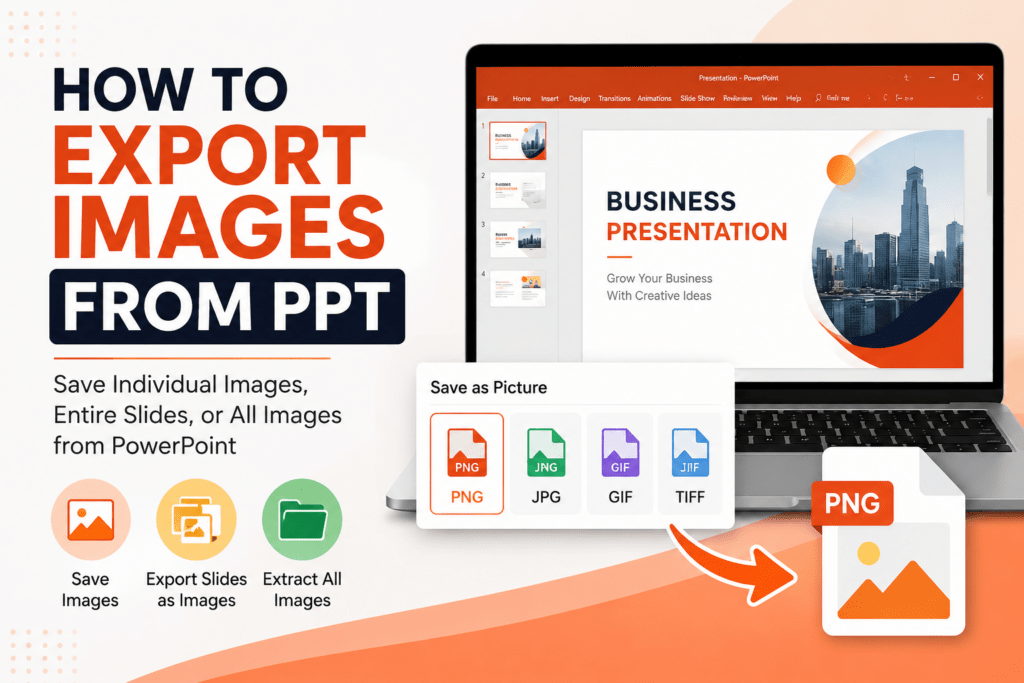

Sometimes you may need to save pictures, graphics, or slide visuals from a PowerPoint presentation for reuse in documents, websites, social media, or other presentations. Fortunately, Microsoft PowerPoint provides several easy ways to export images from PPT files.
In this guide, I’ll explain how to export images from PowerPoint using different methods without losing quality.
Why Export Images from PPT?
Exporting images from PowerPoint helps when you want to:
- Reuse presentation graphics
- Save charts or infographics
- Share slide visuals separately
- Upload presentation images online
- Create thumbnails or marketing content
You can export:
- Individual images
- Entire slides as images
- All slide images at once
Method 1: Save Individual Images from PPT
This is the easiest method for exporting single pictures.
Step 1: Open PowerPoint Presentation
Launch Microsoft PowerPoint and open your PPT file.
Step 2: Right-Click the Image
Select the image you want to export.
Now:
- Right-click the image
- Choose Save as Picture
Step 3: Choose Image Format
PowerPoint allows you to save images in formats like:
- PNG
- JPEG
- GIF
- TIFF
PNG is usually recommended for better quality.
Step 4: Save the Image
Choose the destination folder and click Save.
Your image is now exported from the PPT file.
Method 2: Export Entire Slides as Images
If you want to save complete slides as images, follow these steps.
Step 1: Click File
In PowerPoint:
- Open the presentation
- Click File
- Select Save As
Step 2: Choose Image Format
From the file type dropdown, select:
- PNG
- JPEG
Step 3: Save the Presentation
Click Save.
PowerPoint will ask:
Export Every Slide or Just This One?
Choose:
- Every Slide → Saves all slides as images
- Just This One → Saves current slide only
Step 4: Access Exported Images
PowerPoint creates a new folder containing all slide images.
Each slide will be saved separately.
Method 3: Extract Images Using ZIP Method
This method helps extract original-quality images from PPT files.
Step 1: Duplicate the PPT File
Create a copy of your .pptx file.
Step 2: Rename File Extension
Change:
.pptx → .zipExample:
presentation.pptx → presentation.zipStep 3: Open ZIP Folder
Extract the ZIP file using:
- Windows Explorer
- WinRAR
- 7-Zip
Step 4: Locate Media Folder
Go to:
ppt > mediaYou will find all presentation images stored separately.
This method preserves original image quality.
Method 4: Screenshot Method
If exporting is restricted, screenshots can help.
Steps:
- Open slide in presentation mode
- Use screenshot tool
- Crop the required image
- Save it
This method is useful for quick extraction.
Export High-Quality Images from PPT
To improve image quality:
- Use PNG format instead of JPEG
- Increase PowerPoint export resolution
- Avoid compressing images
- Use high-resolution visuals in slides
How to Increase PowerPoint Export Resolution
By default, PowerPoint exports medium-quality images.
You can improve this through Windows Registry settings.
Higher resolution helps when:
- Printing slides
- Uploading online
- Creating graphics
However, advanced settings should be modified carefully.
Common Problems While Exporting Images from PPT
Exported Images Look Blurry
Fix:
- Export as PNG
- Use high-resolution source images
- Disable image compression
Missing Images After Export
Sometimes linked images may not appear.
Fix:
- Embed images properly before saving
- Reinsert missing visuals
Transparent Background Not Working
JPEG format removes transparency.
Fix:
- Use PNG format instead
Best Uses of Exported PPT Images
Exported PowerPoint images can be used for:
- Blogs and websites
- Social media posts
- Marketing materials
- YouTube thumbnails
- Training resources
- Reports and documents
Create Better Presentations Faster with AI
If you regularly create presentations with lots of visuals, tools like MagicSlides AI PPT Creator can simplify the process.
Instead of manually designing every slide, MagicSlides helps generate professional presentations automatically from:
- Documents
- PDFs
- URLs
- YouTube videos
- Text prompts
You can quickly create visually appealing slides and later export images or entire presentations easily from Microsoft PowerPoint.
Final Thoughts
Exporting images from PPT is simple once you know the right method. Whether you want to save a single image, extract all visuals, or export complete slides, Microsoft PowerPoint offers multiple ways to do it efficiently.
For best quality, using the ZIP extraction method or PNG export is usually the most effective option.