
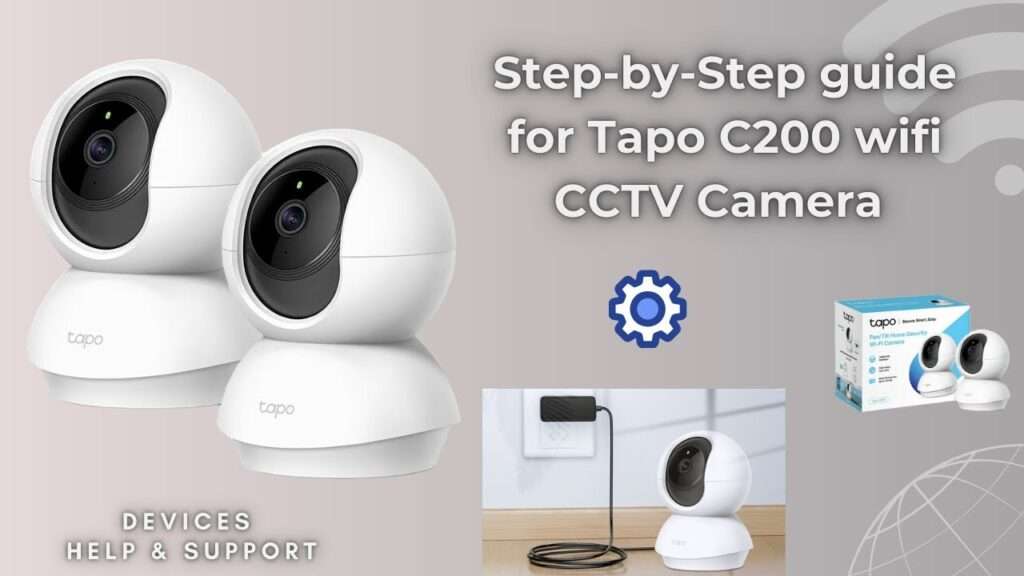

The TP-Link Tapo C200 is one of the most popular affordable indoor security cameras, offering 1080p HD video, pan/tilt control, night vision, and mobile app monitoring.
In this guide, you’ll learn exactly how to set it up from scratch—even if you’re a beginner.
🔧 What You’ll Need Before Setup
Before you start, make sure you have:
- Tapo C200 camera
- Power adapter (included)
- Stable 2.4 GHz WiFi connection
- Smartphone (Android or iPhone)
- Tapo App
Step 1: Unbox & Power On the Camera

- Take the camera out of the box
- Plug it into a power source
- Wait for the LED to blink red and green
👉 This blinking indicates the camera is ready for setup
Step 2: Download & Install the Tapo App
- Go to Google Play Store or App Store
- Search for Tapo App
- Install and open it
- Create or log in to your TP-Link account
👉 You’ll need to allow location permission for setup
Step 3: Add Your Camera


- Tap the “+” (Add Device) button
- Select Smart Camera → Tapo C200
- Follow the on-screen instructions
The app will guide you through pairing your camera automatically.
Step 4: Connect to WiFi
- Select your WiFi network
- Enter your password
- Wait for the camera to connect
👉 When successful, the LED turns solid green
Step 5: Position & Mount the Camera


8
You can:
- Place it on a shelf or table
- Mount it on a wall or ceiling using screws
📌 Tips:
- Place it in a corner for maximum coverage
- Avoid direct sunlight or reflective surfaces
Step 6: Insert microSD Card (Optional)
- Insert a microSD card (up to 512GB supported)
- Format it through the app
This enables local video recording without cloud subscription
Step 7: Customize Settings
Inside the app, you can:
- Enable motion detection
- Set alert notifications
- Use two-way audio
- Adjust video quality
- Create camera zones
How to Reset the Camera (If Needed)
If something goes wrong:
- Press and hold the RESET button for ~5 seconds
- Wait for blinking red LED
- Set it up again
👉 This restores factory settings
Common Setup Issues (And Fixes)
1. Camera not connecting to WiFi
- Ensure you’re using 2.4 GHz (not 5 GHz)
2. App can’t find camera
- Make sure LED is blinking red & green
- Restart the setup process
3. Pairing fails
- Reset the camera and try again
Security Tips (Important)
- Use a strong TP-Link account password
- Enable 2FA (Two-Factor Authentication)
- Keep firmware updated
- Avoid using public WiFi during setup
?? External Website: https://wifilink.com.pk/